
 by Ontiqo
The Longtom guide
Every page of Longtom, in order. The screenshots show a made-up business. For anything not covered here, see Help.
Getting started
Install
Install Longtom from the Microsoft Store and open it from the Start menu. It runs on Windows 10 (version 2004 or later) and Windows 11.
It also needs a coding CLI, such as Claude Code, Codex, GitHub Copilot or Cursor. Longtom uses it, on your own plan, to read and write.
The first start
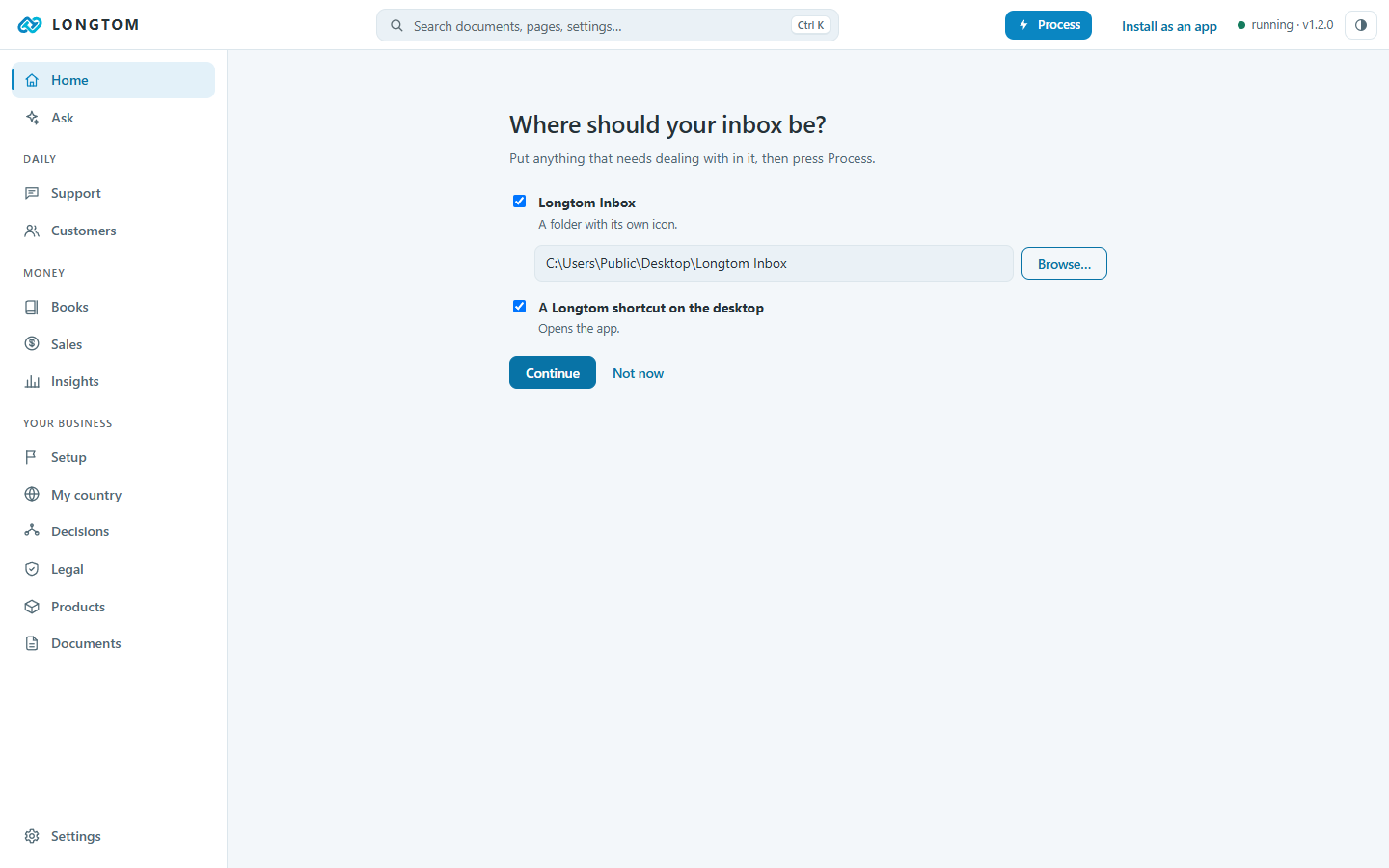
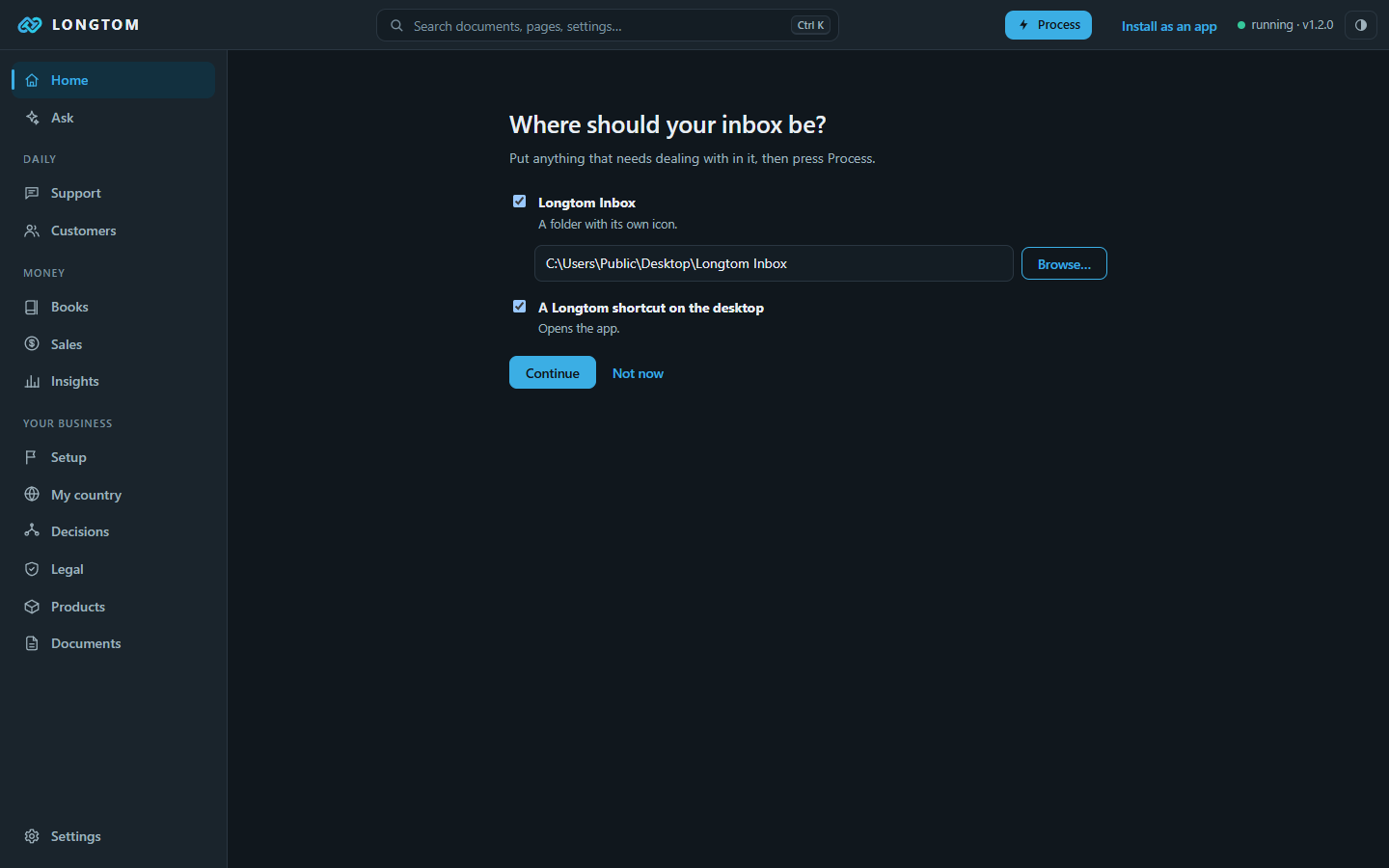
The first page asks where your inbox should be: the folder where you put anything that needs dealing with. Longtom suggests Longtom Inbox on your desktop, with its own icon; change it or browse to another. Leave the second box ticked for a Longtom shortcut on the desktop.
Press Continue, or Not now to do it later from Documents.
Then choose the country the business is in. Everything tax-related follows from it, so it is the one required answer.
Moving to a new computer? Choose Put a business back instead. See Backups and a new computer.
Process: the AI does the work
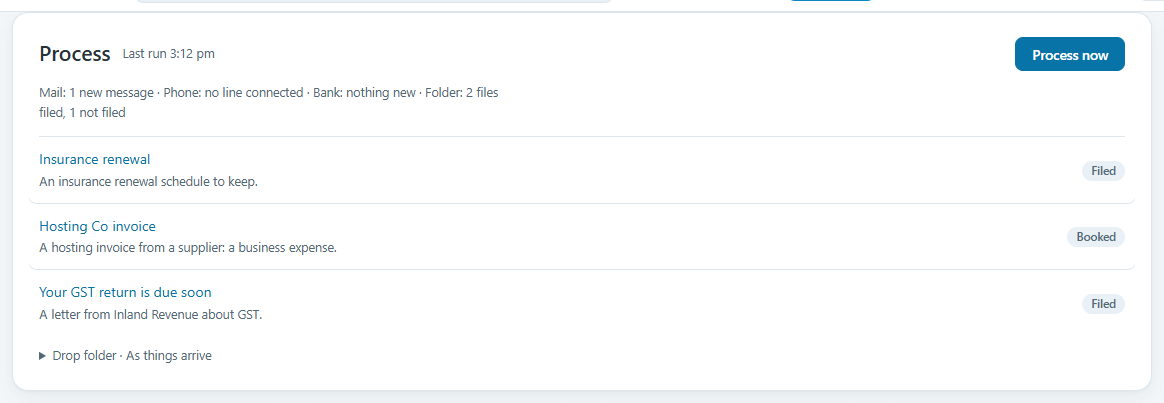
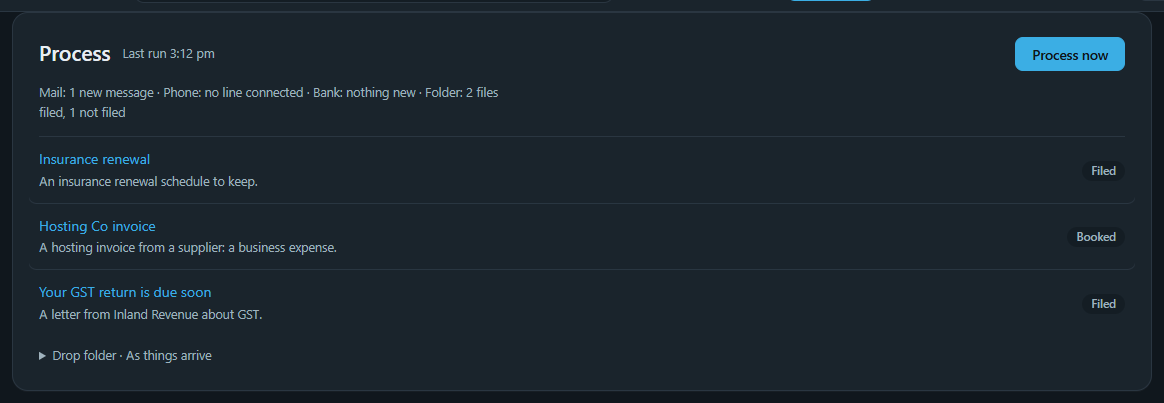
Files in the inbox, mail, calls and bank lines all go through your AI when Longtom processes. The AI decides what each thing is and what to do with it.
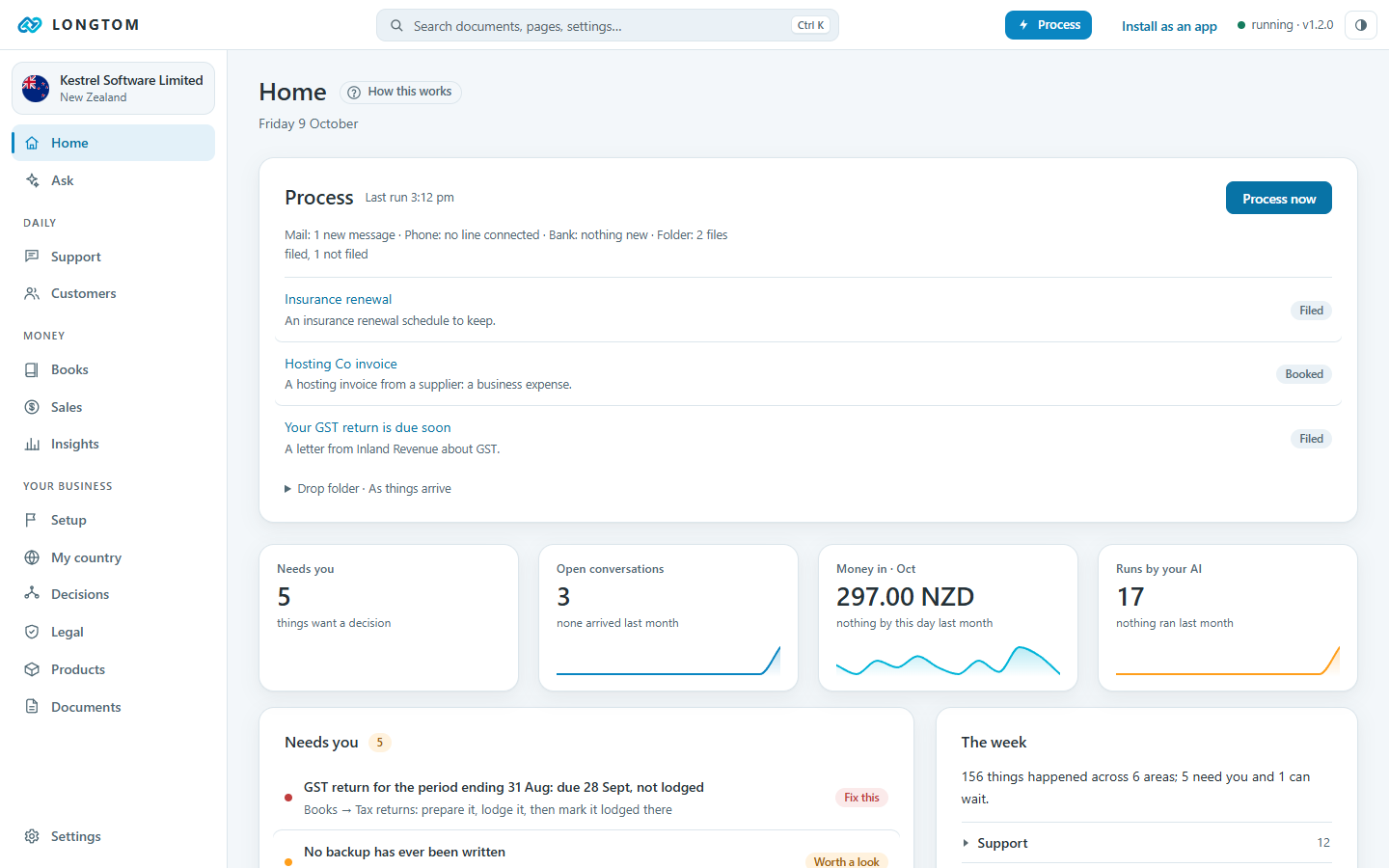
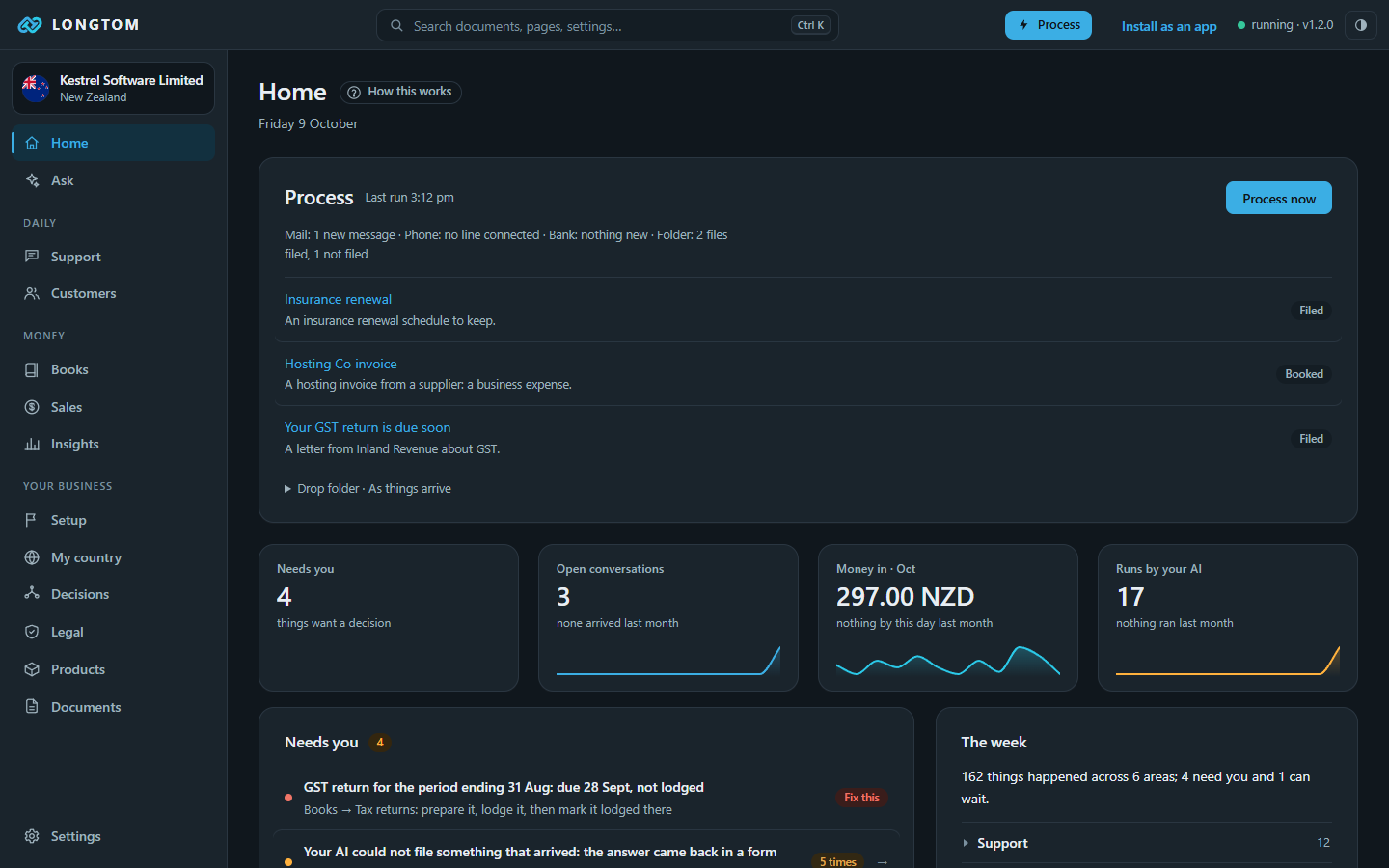
Press Process at the top of the window, Process now on Home, or Process now on the tray icon. Each run:
- checks your mail, from where the last check stopped,
- checks your phone line for texts and voicemail,
- checks your bank feed,
- reads every file in your inbox folder.
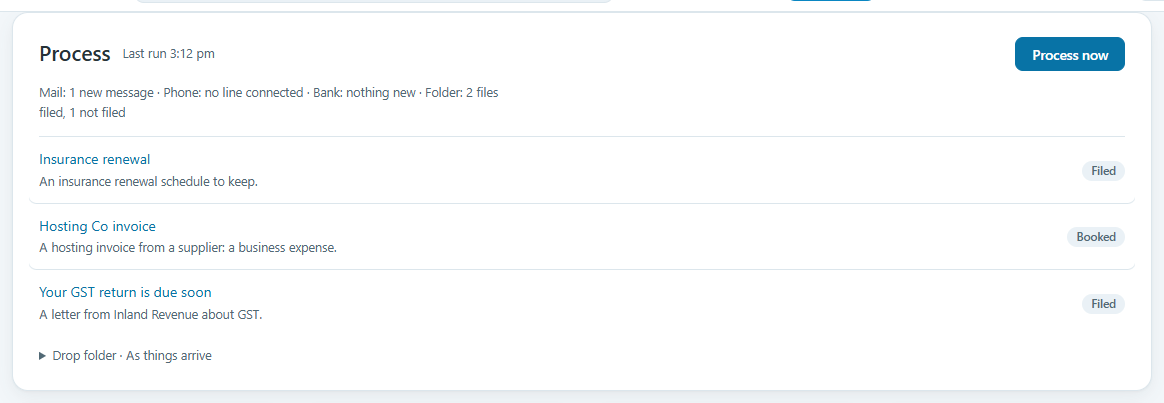
Each item goes to books (a receipt or invoice, booked), documents (a letter, contract or notice, named and filed), support (a customer, as a ticket) or not the business's. Files in the inbox then move to Filed or Not filed. Nothing is deleted.
When it runs
Open Drop folder on the Process card to choose:
- As things arrive (the default): each source is checked on its own while Longtom runs.
- Every hour or Once a day: everything together. A missed day is caught up when Longtom next starts.
- Only when I press Process.
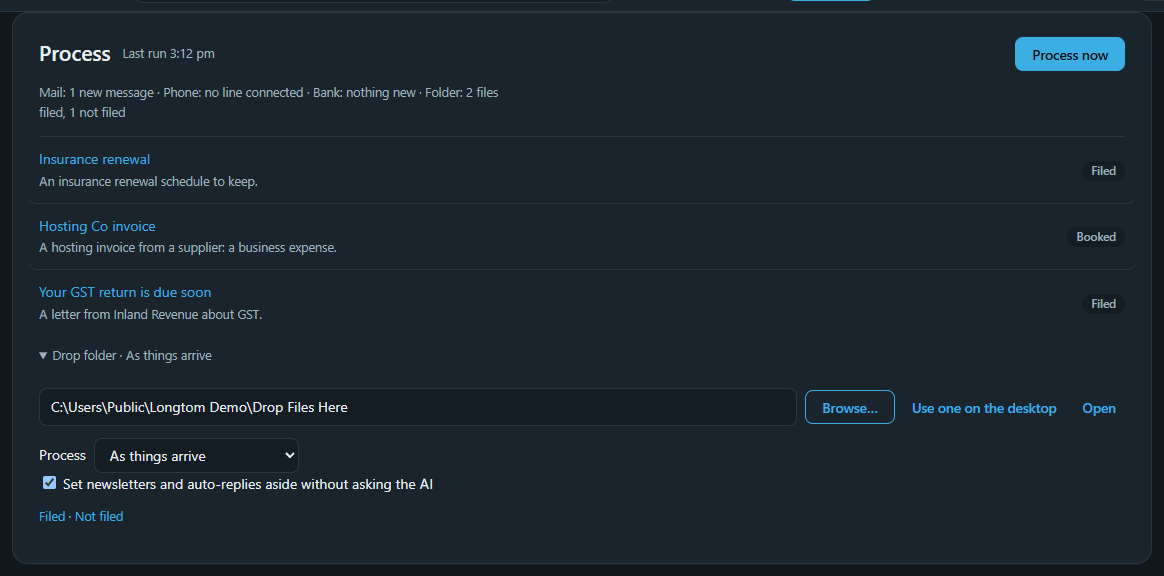
Newsletters and auto-replies are set aside without asking the AI, to save your plan. Untick the box to have the AI read every message.
When an email has a PDF or photo attached, the attachment is what gets read: the invoice is the thing, the email only covers it.
Home
Home shows the last Process run, what needs you, this month's money and what your AI did this week. Anything that needs a decision links to the page where you make it.
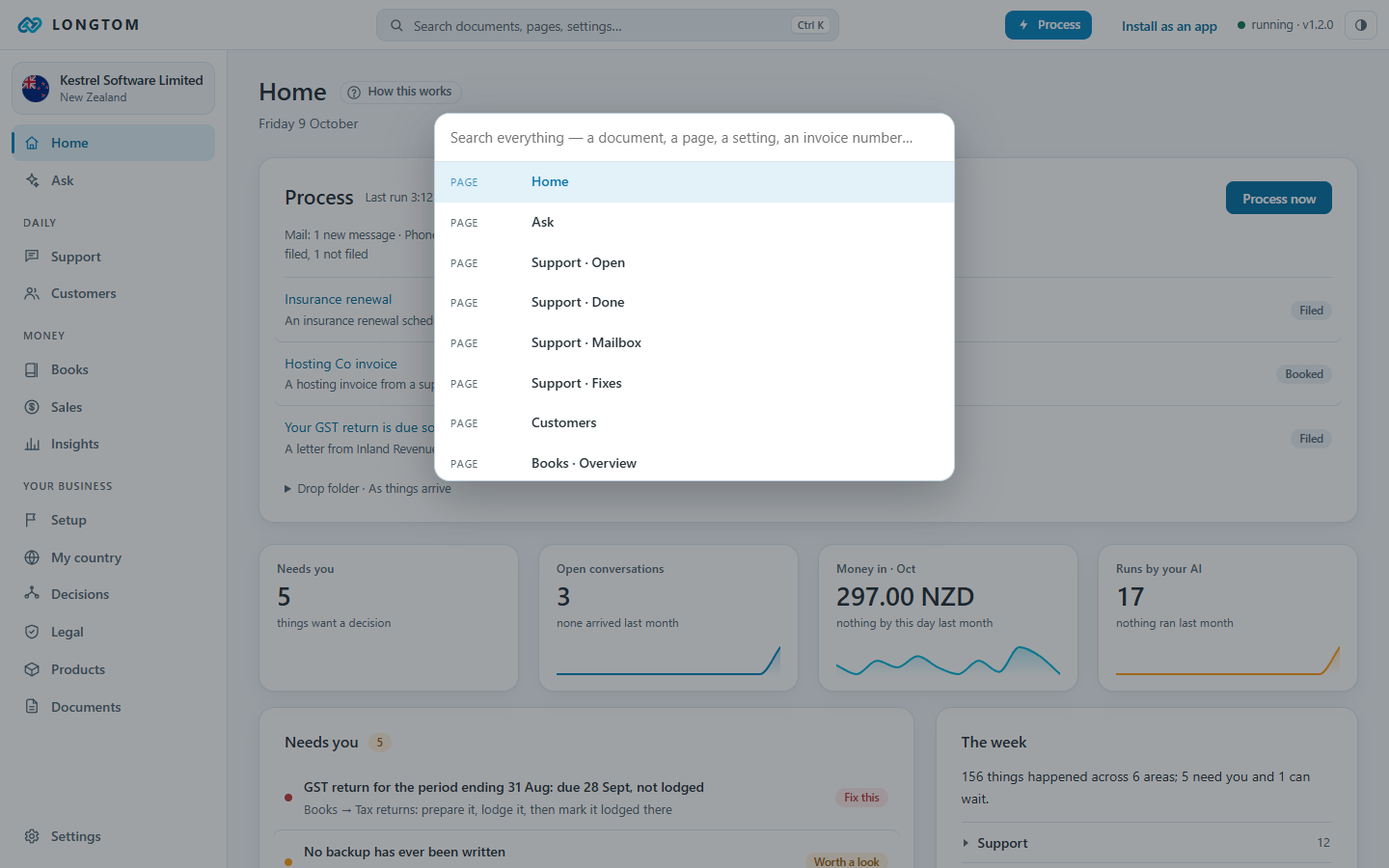
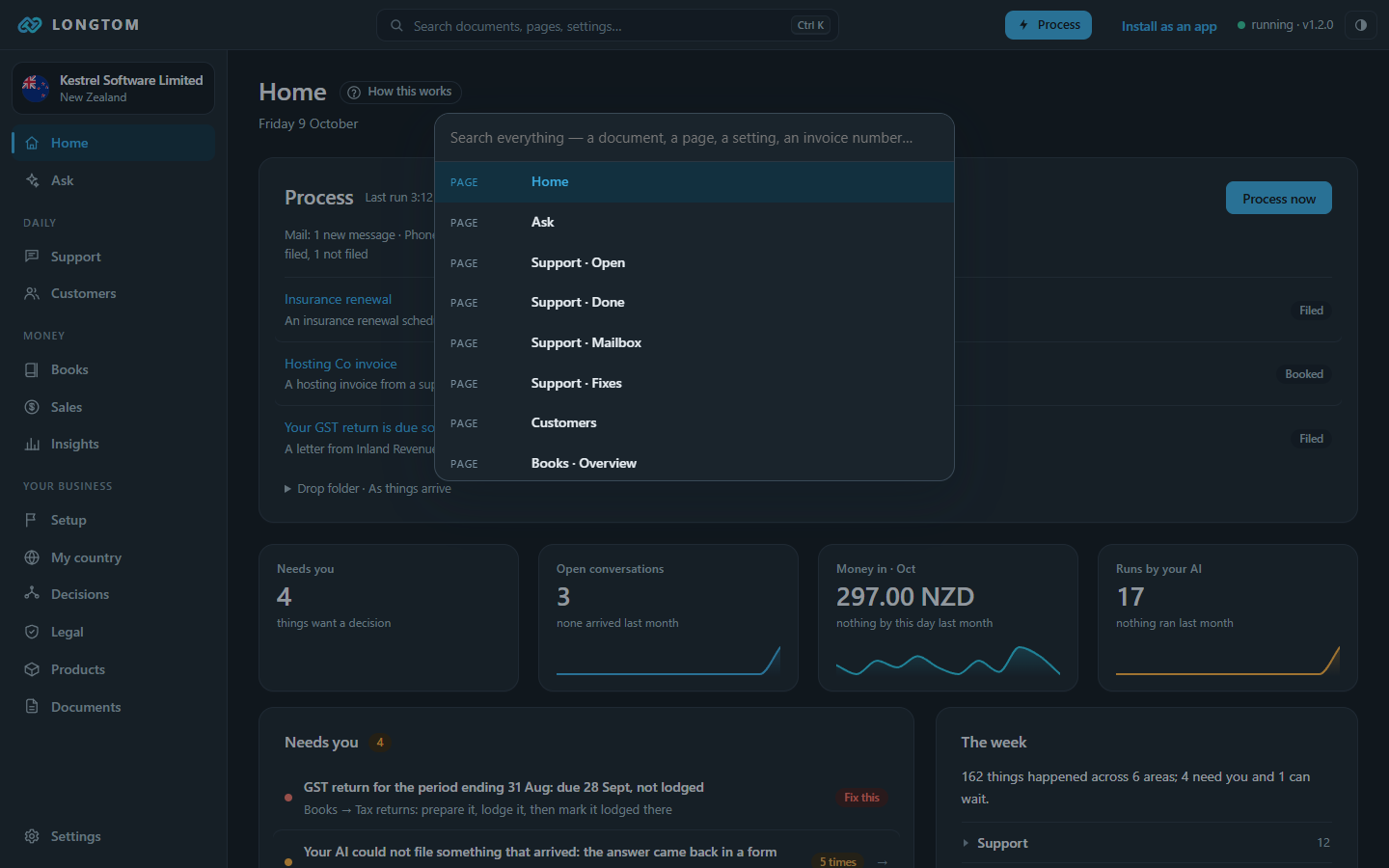
Press Ctrl K, or click the search box, to jump to any page, document, customer or setting.
Connecting mail, phone and bank
Settings › Mail. Connect any mailbox by IMAP, or sign in with Microsoft for Outlook and Exchange. You can add more than one; a reply goes out from the mailbox the message arrived at.
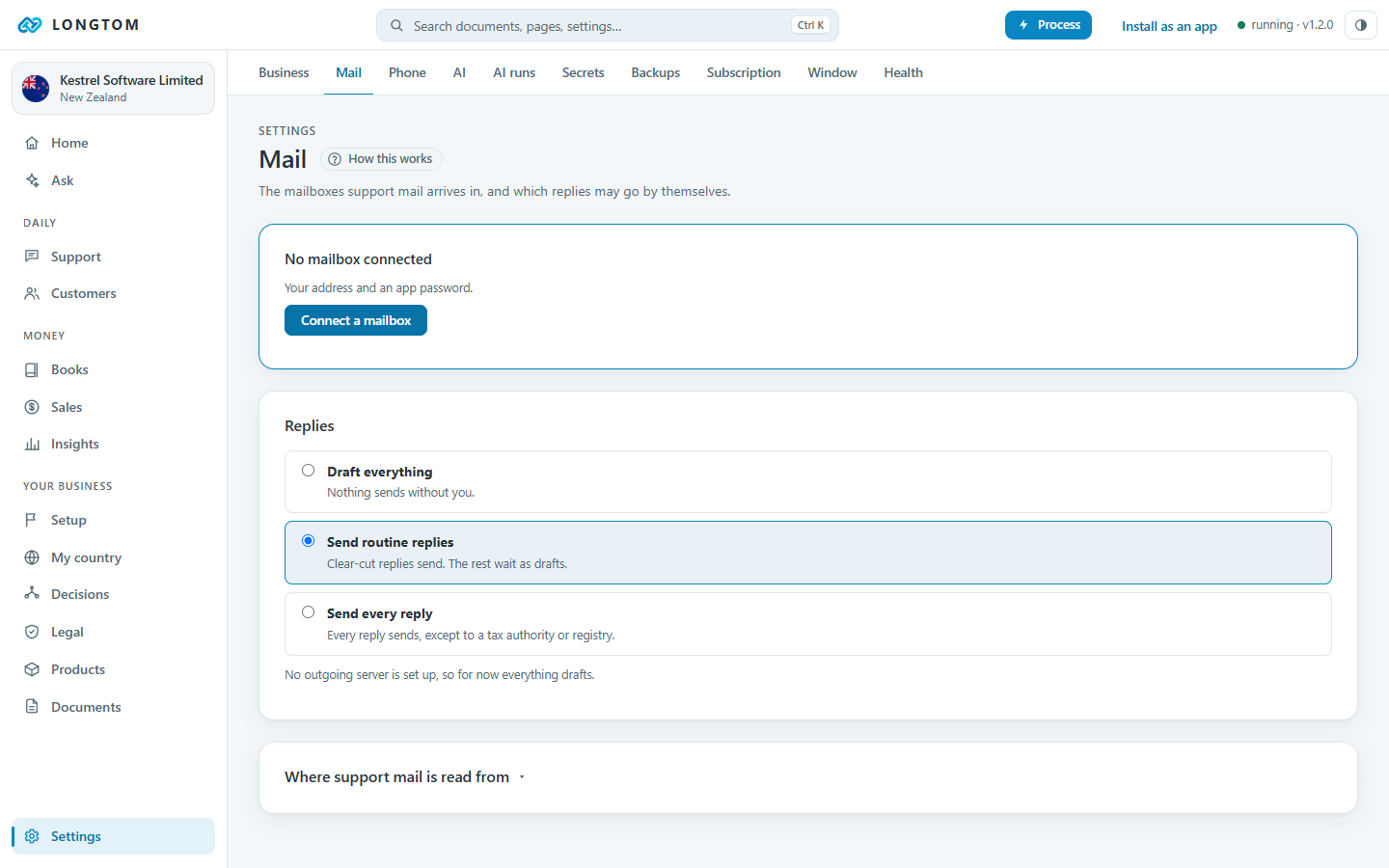
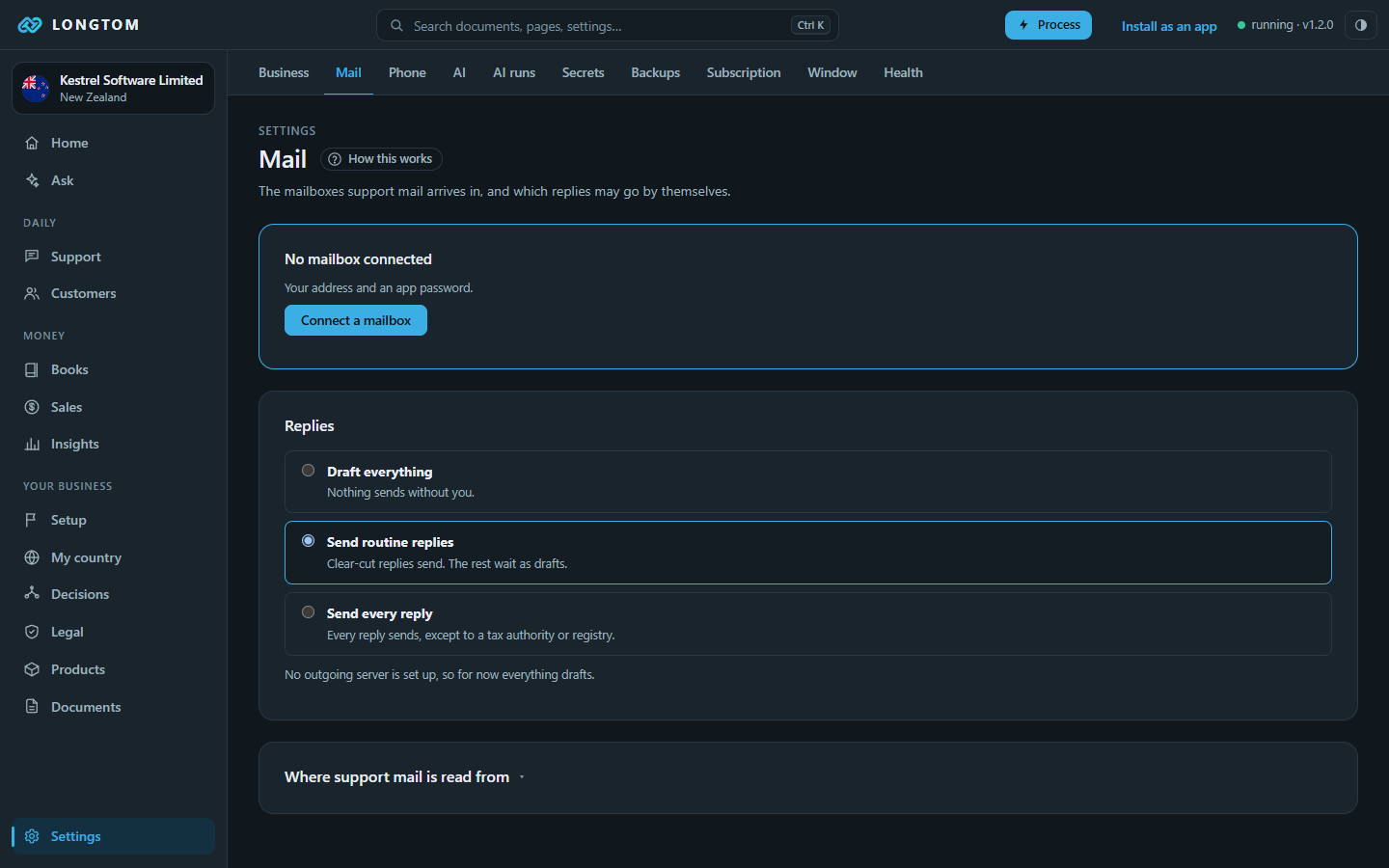
Routine support replies can go out on their own; anything less clear-cut waits for you, with the reason on the ticket. Settings › Mail sets how far that goes: Draft everything, Send routine replies (the default) or Send every reply. Nothing is ever sent to a tax authority or a registry.
Phone
Settings › Phone. Connect a Twilio or Telnyx number. Texts and voicemail become tickets, like email, and voicemail is transcribed on your own computer.
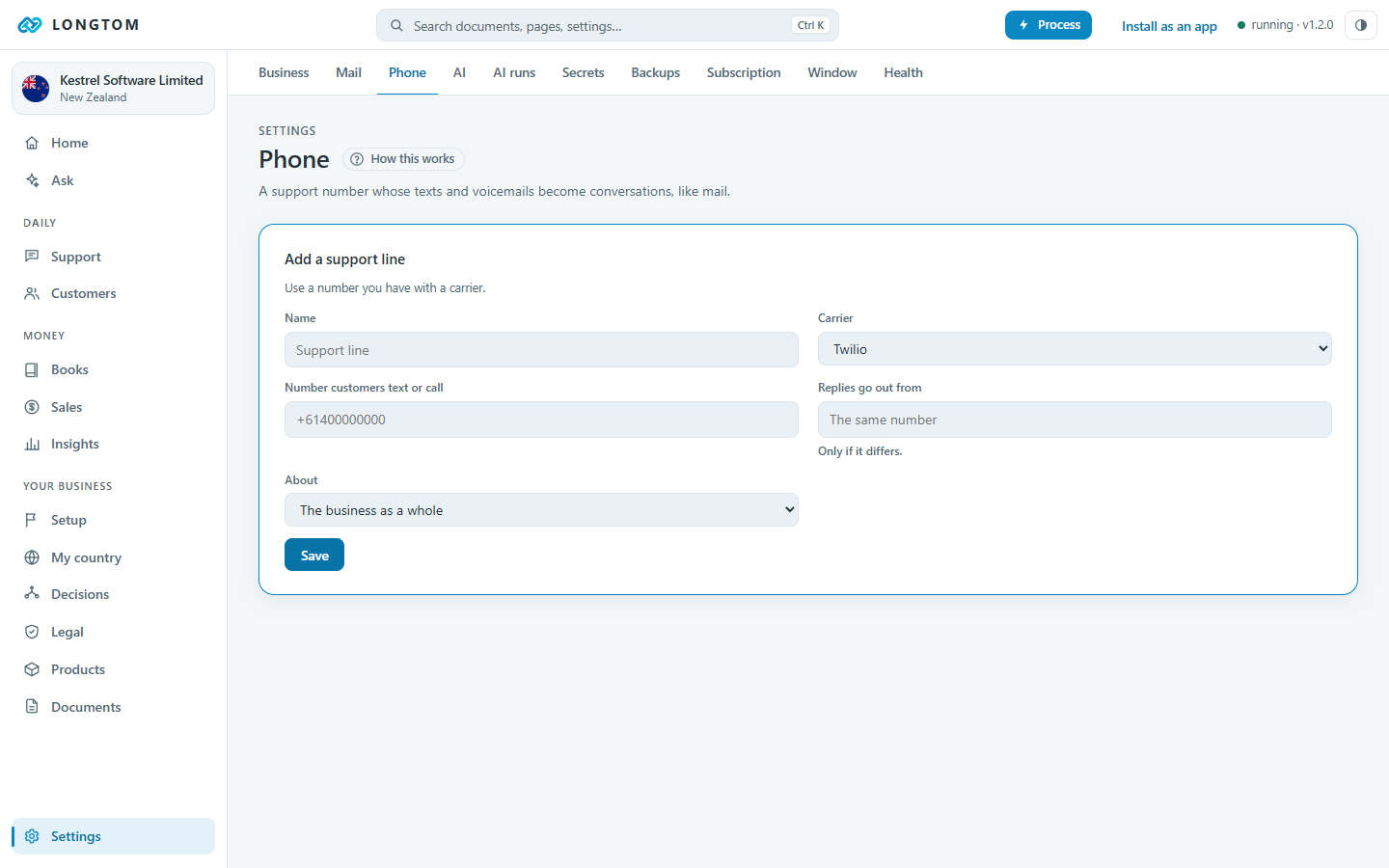
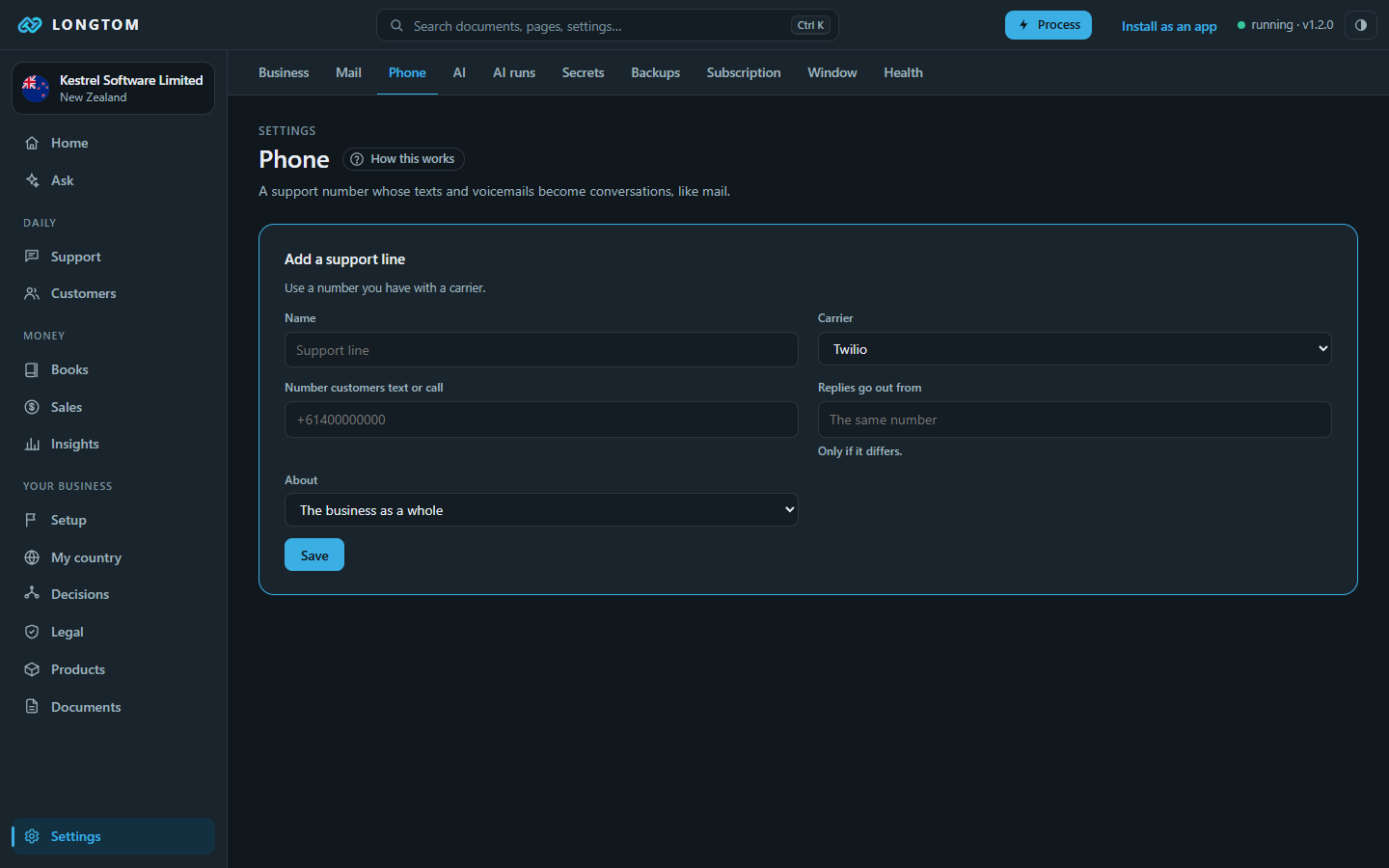
For Telnyx voicemail, set the number's TeXML voice URL to https://longtom.app/telnyx/voicemail.xml. Telnyx keeps texts for about ten days, so a computer that is off longer than that misses some.
Bank
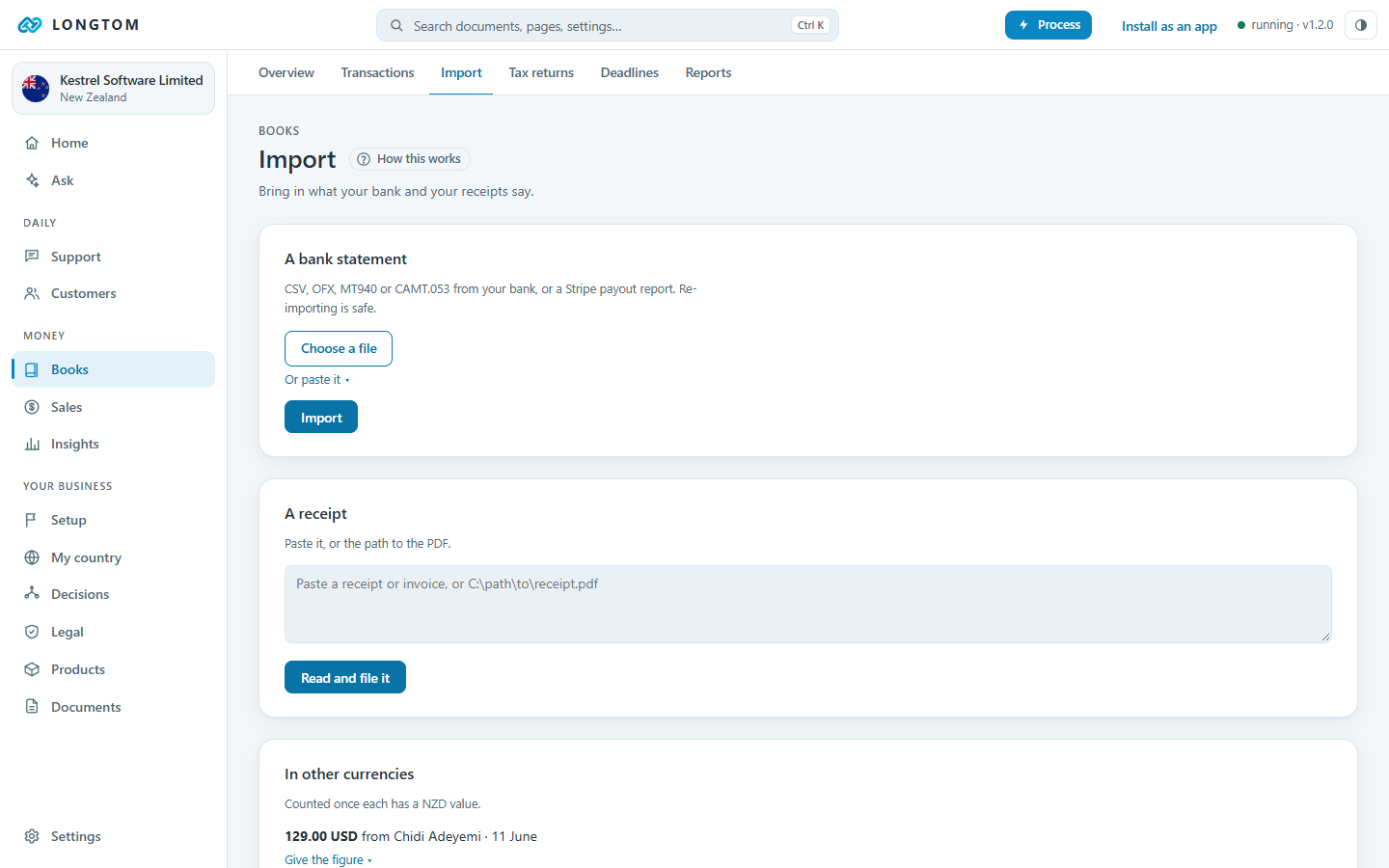
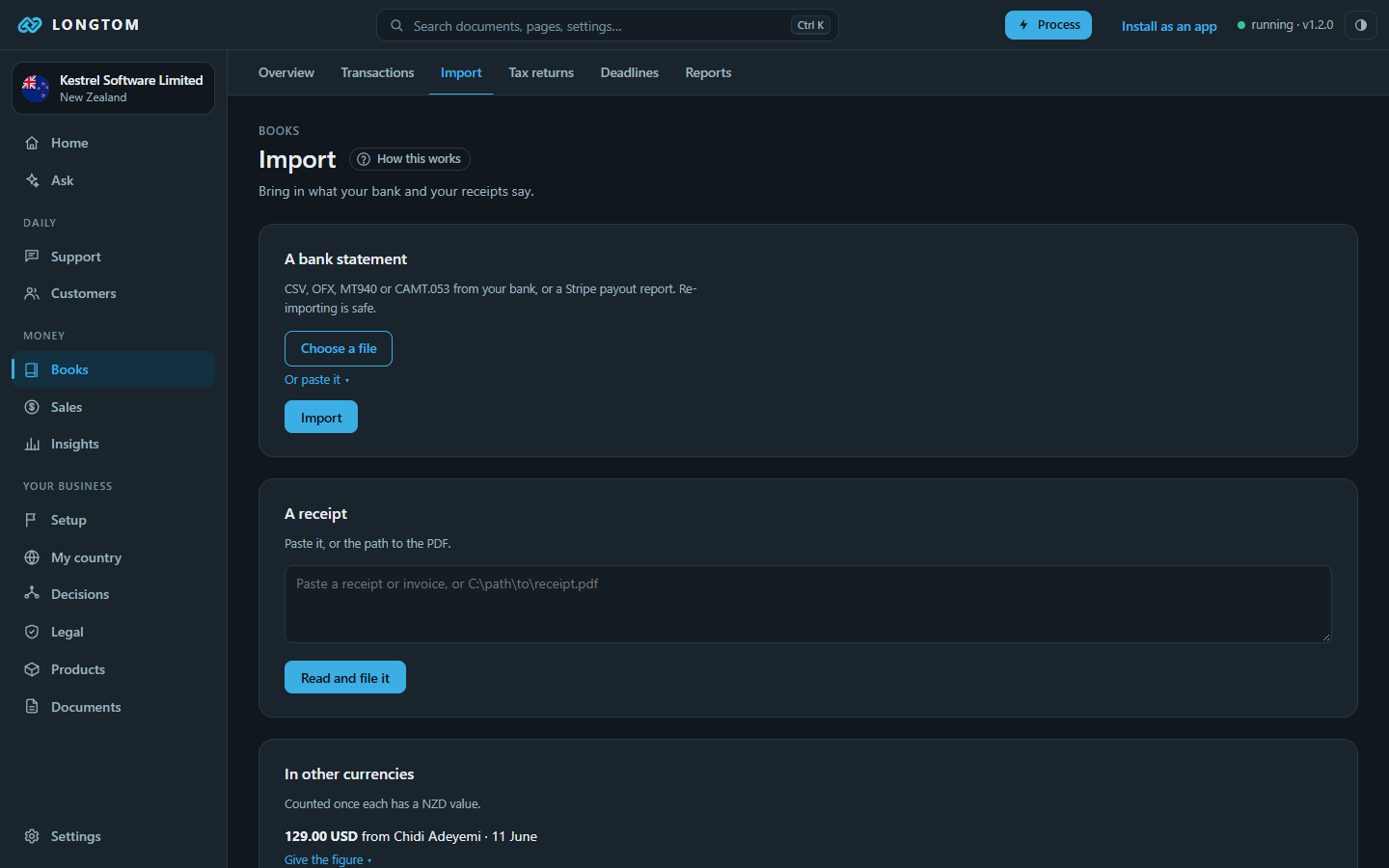
Books › Import. Starling and Mercury connect directly. For any other bank, drop its statement export (CSV, OFX, camt.053 or MT940) in the inbox or on the Import page.
Support
Every customer message becomes a ticket, whether it came by email, text or voicemail. The AI classifies it, links it to the customer and their orders, and drafts a reply.
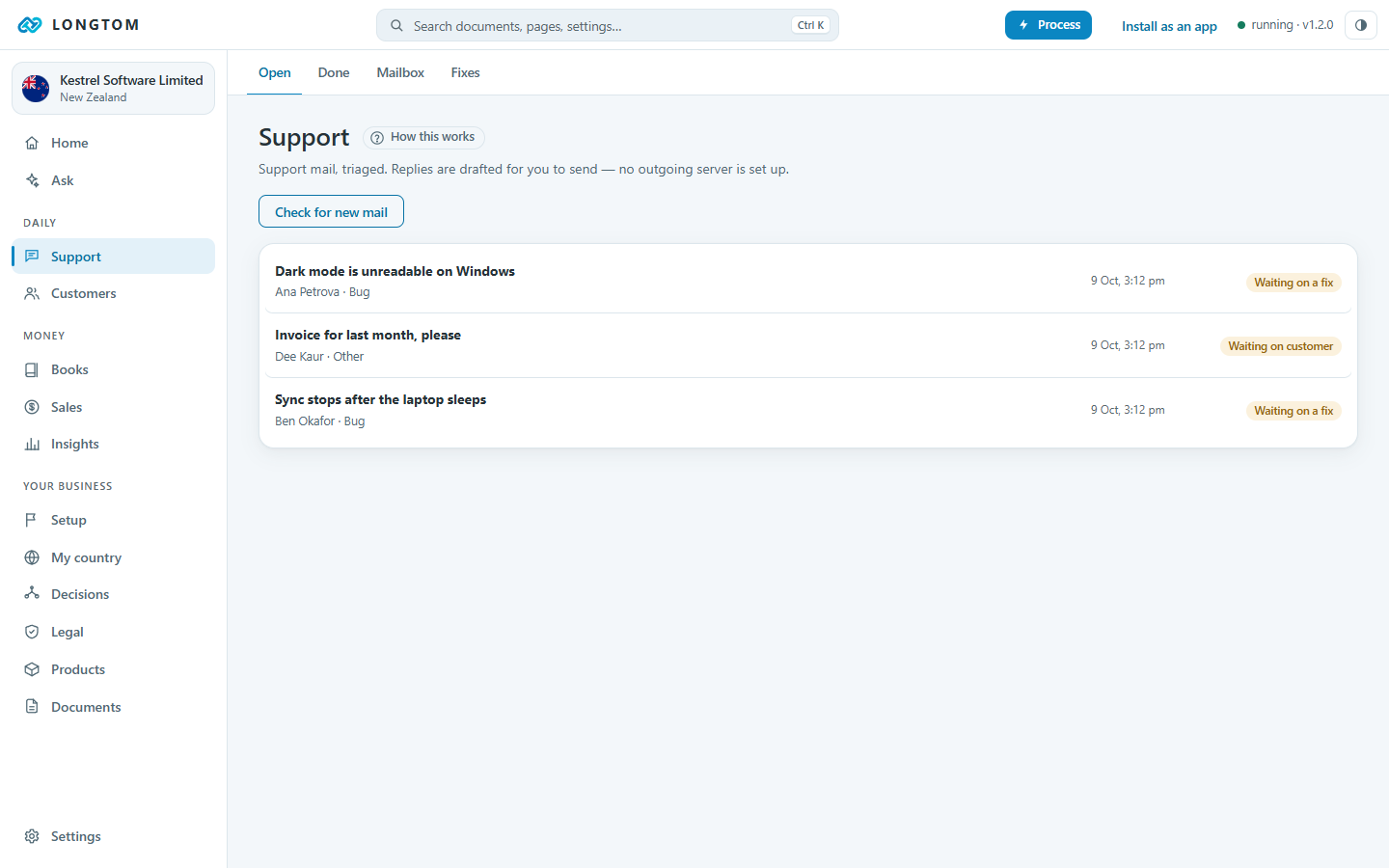
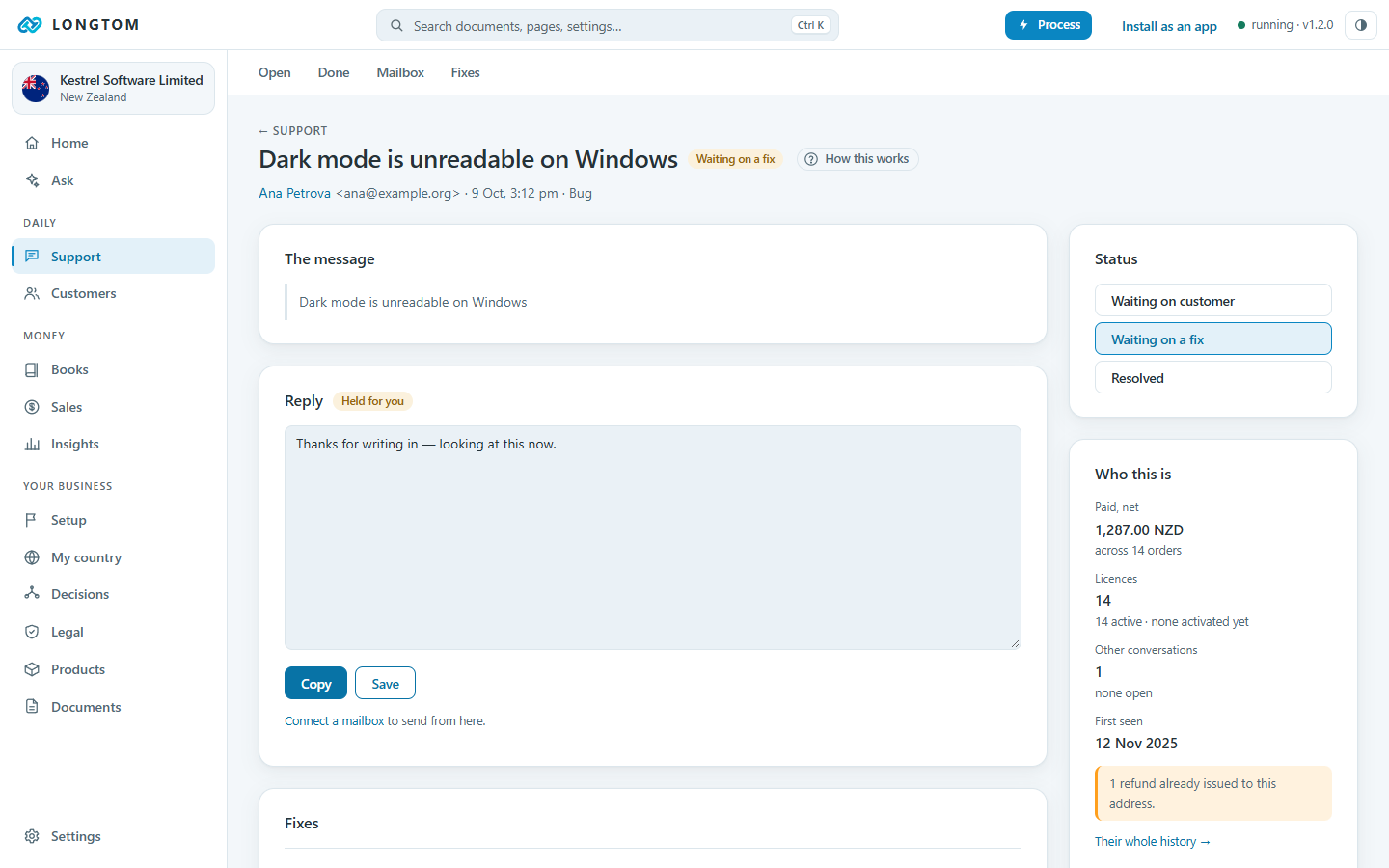
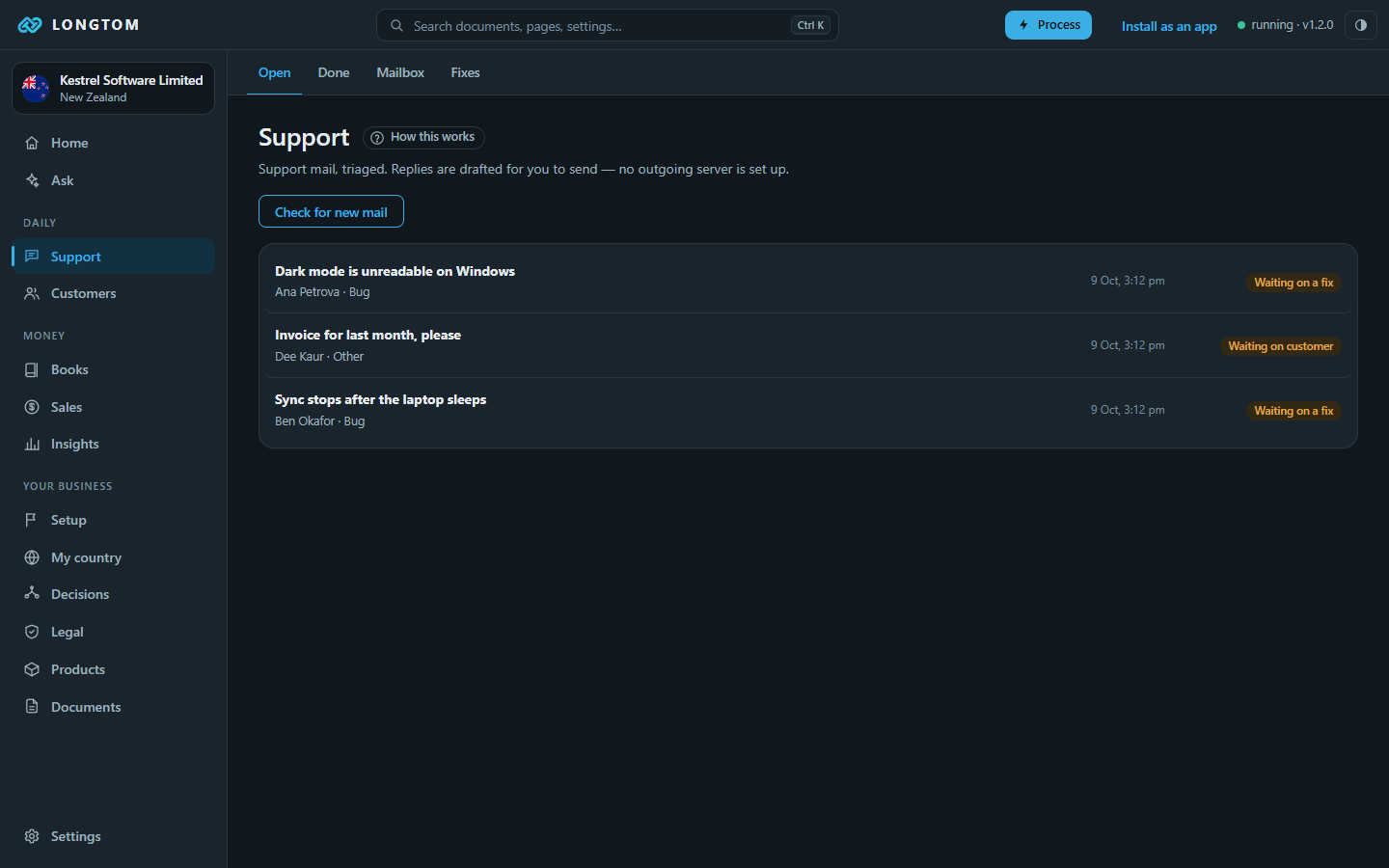
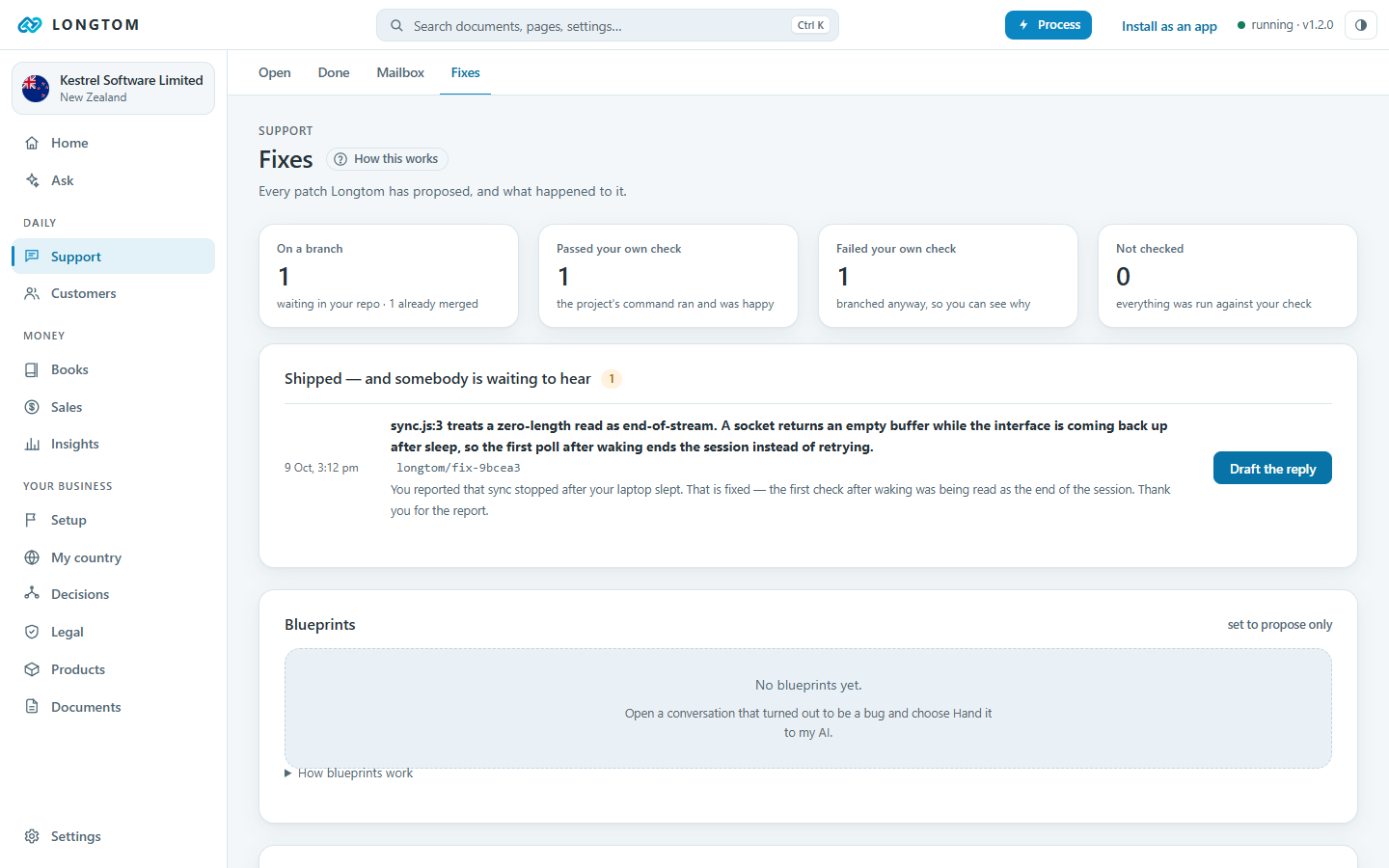
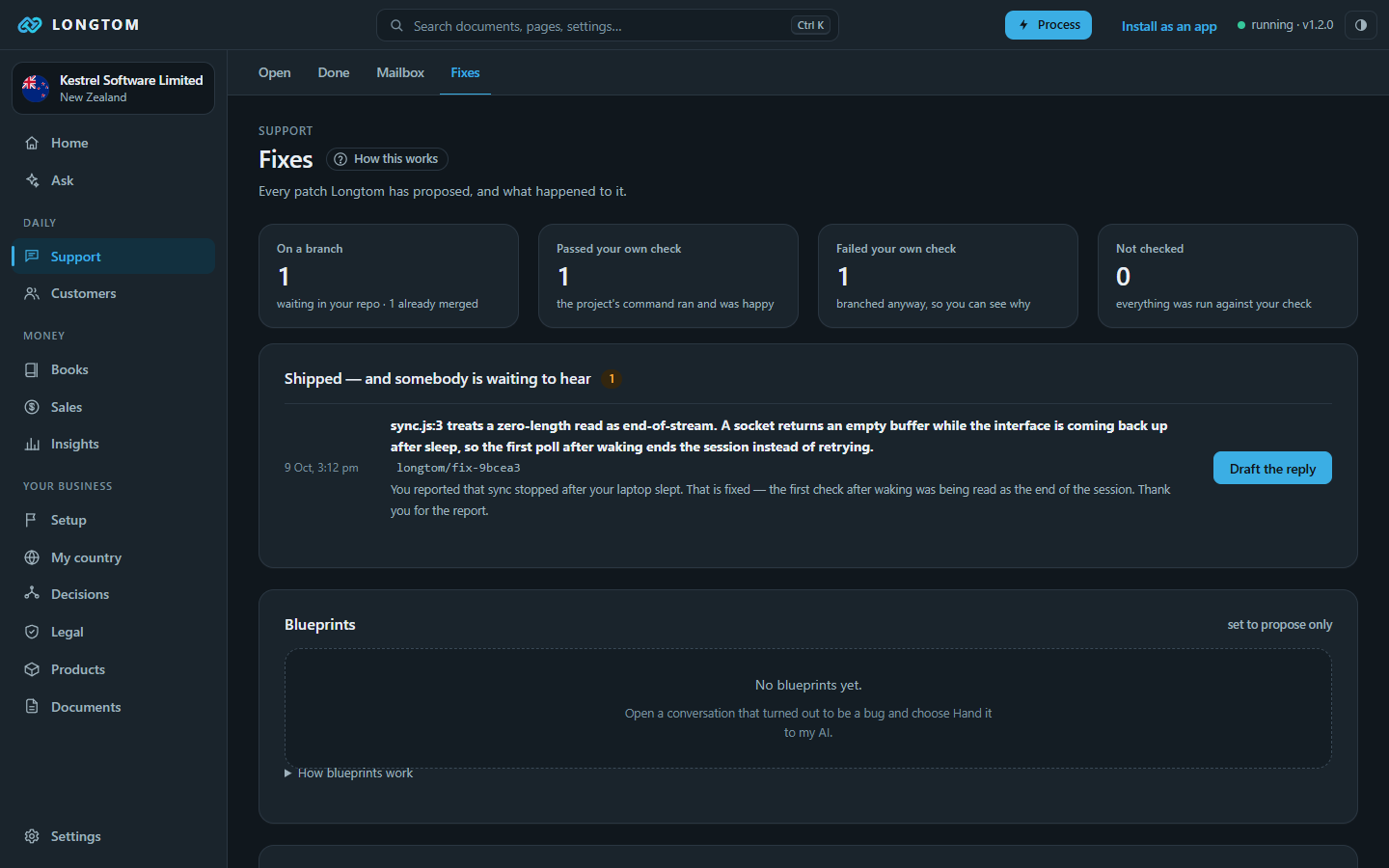
For a bug in your own product, Longtom can hand the ticket and your repository to your AI. The fix comes back as a branch for you to review; it is never merged automatically. Support › Fixes lists them.
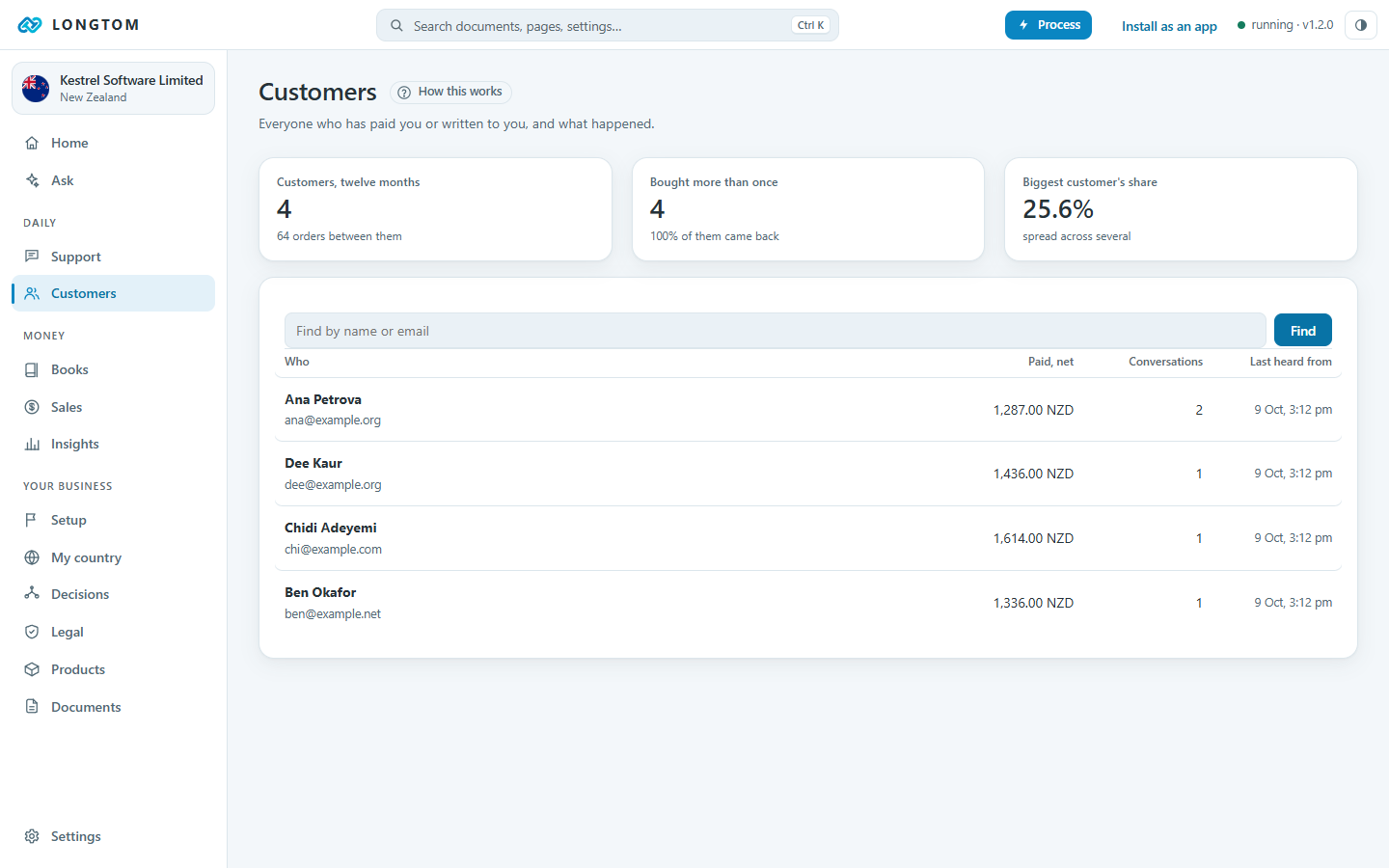
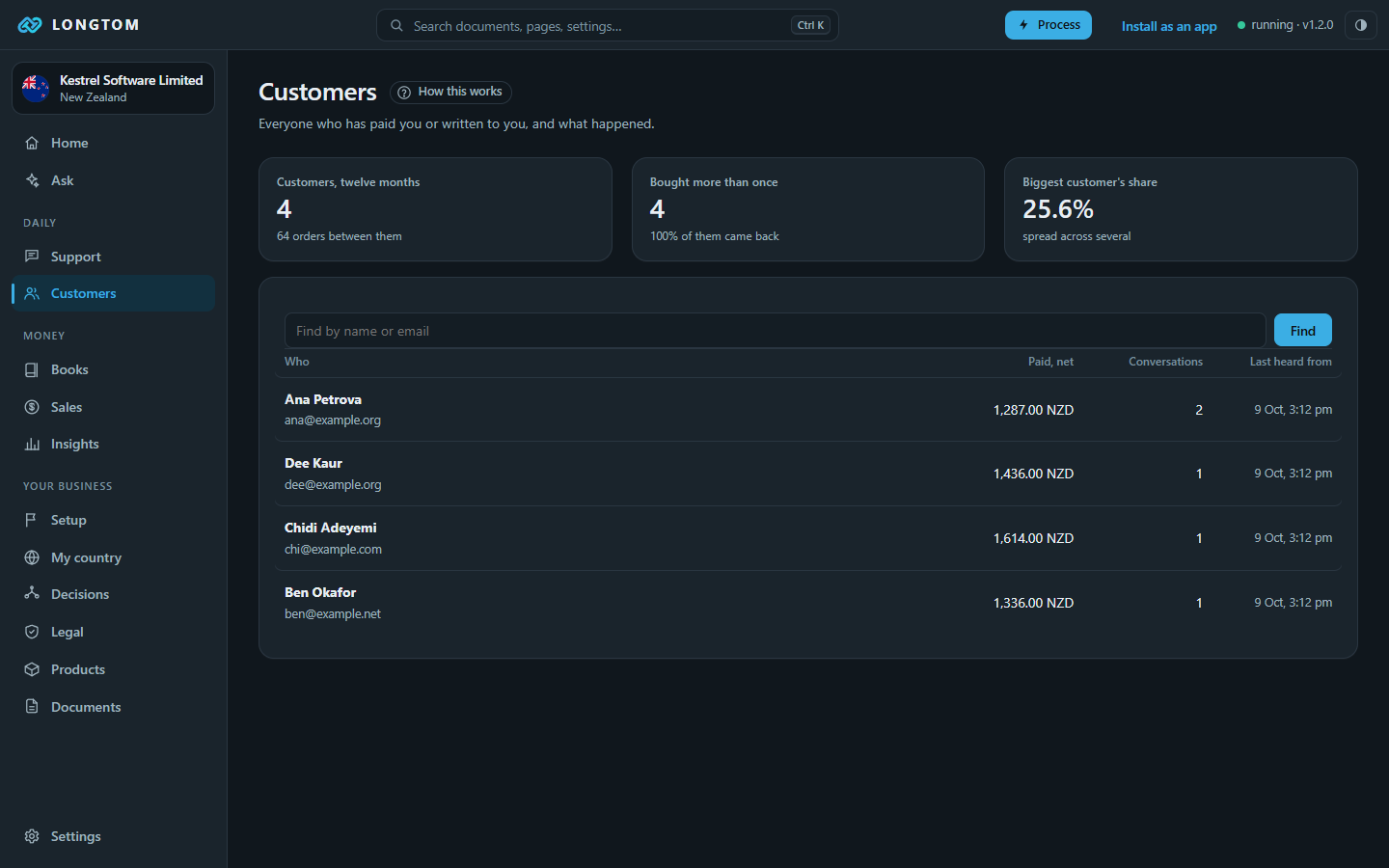
Customers shows everyone who has bought or written, with their orders, licences and conversations.
Books, sales and tax
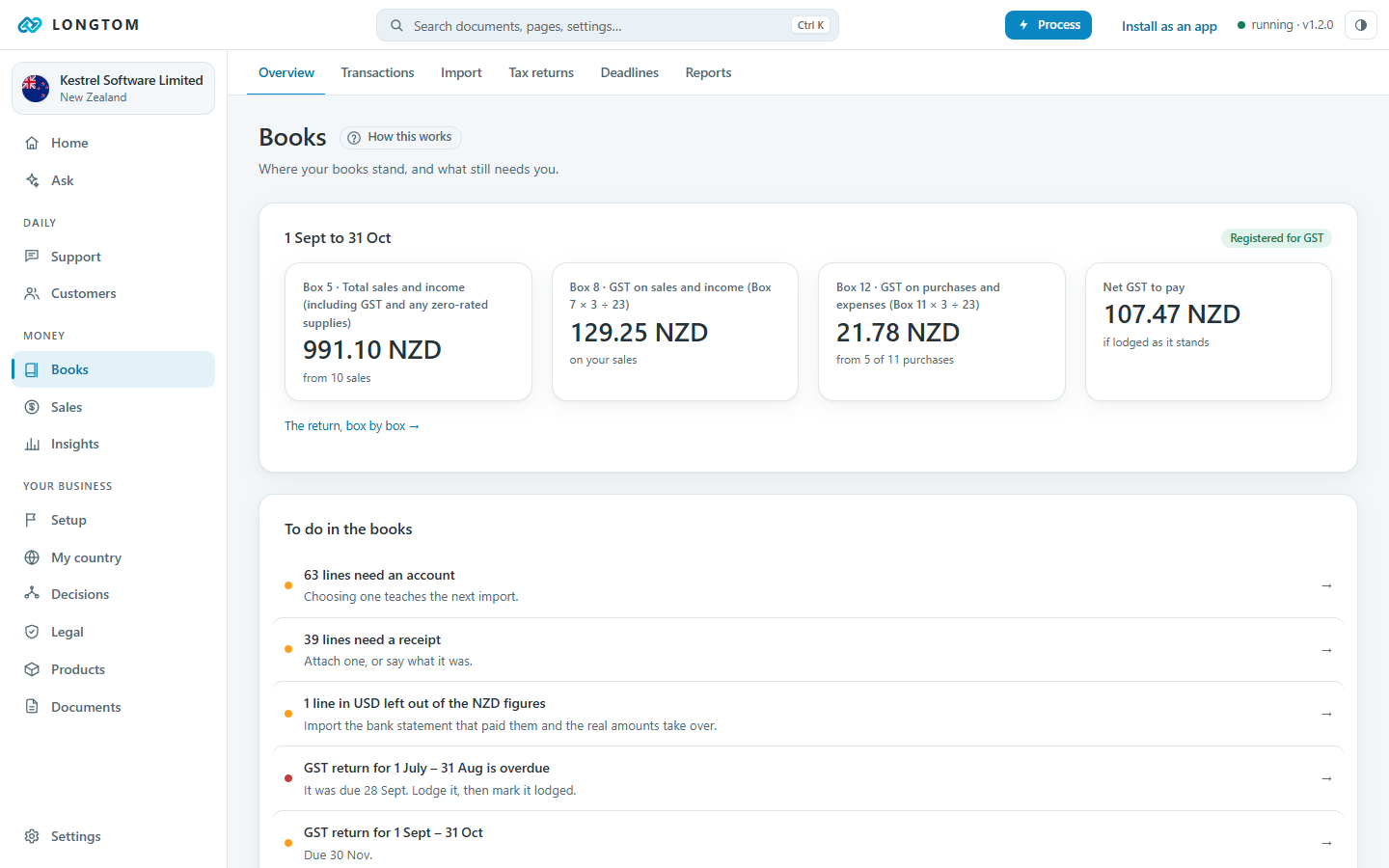
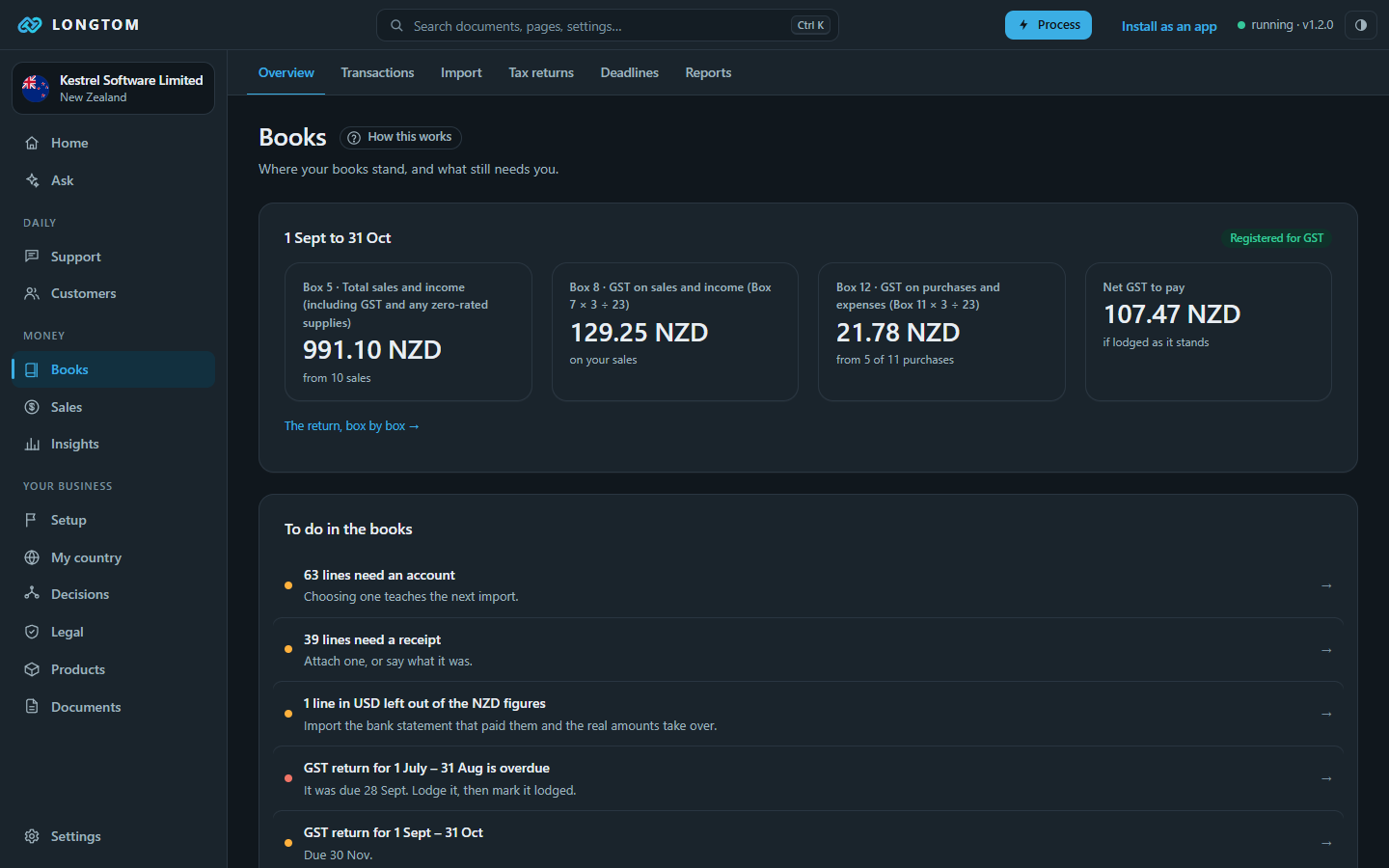
Overview shows the current period in your tax return's own labels, and what still needs you.
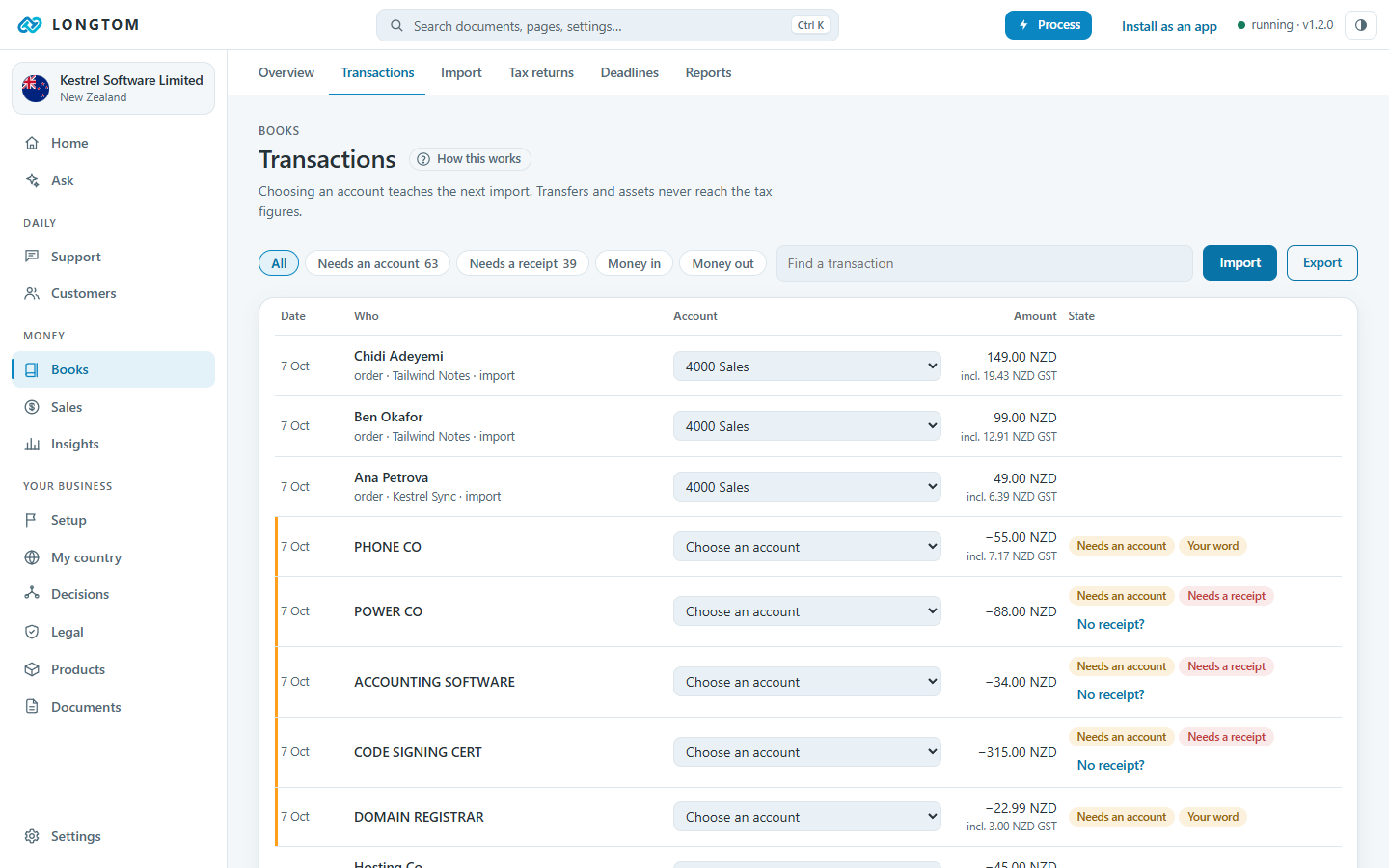
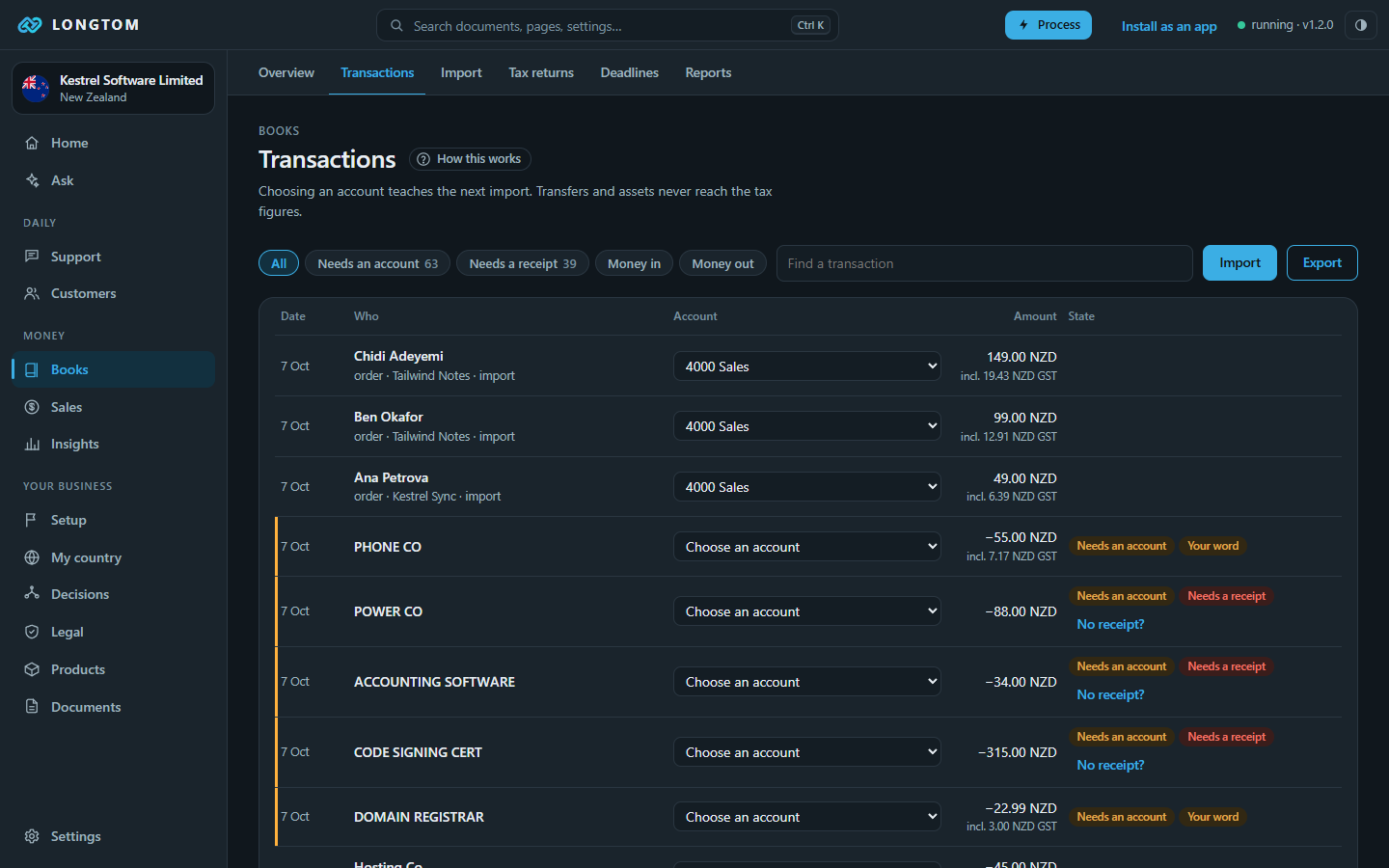
Transactions is the ledger. Choose an account for a line once and the rule is applied to the next import. Export gives the ledger as CSV, or each bank account as OFX.
Tax returns are prepared for you to lodge yourself at your authority's own portal. Every figure links to the lines it came from. Mark a return lodged once you have done it.
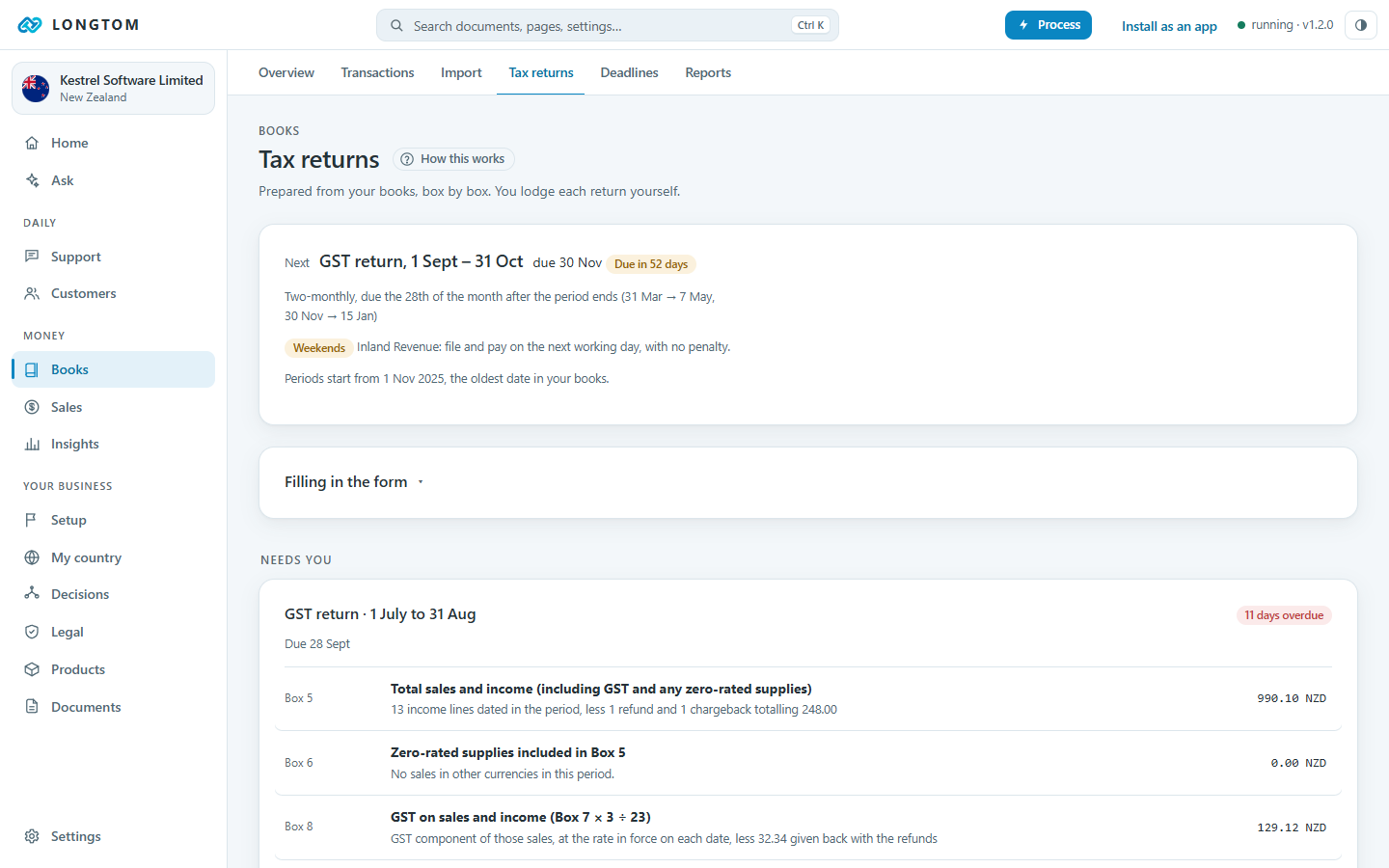
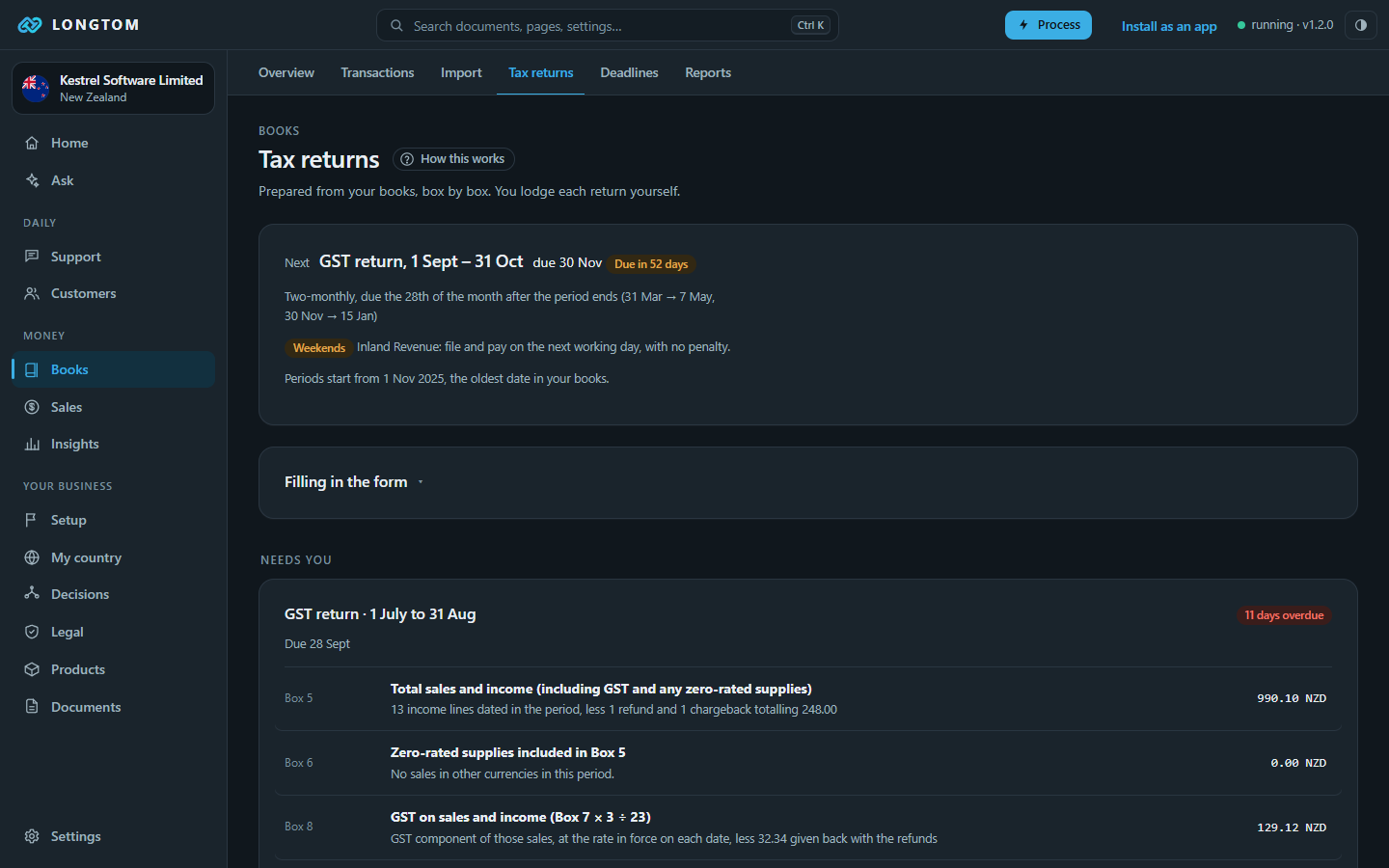
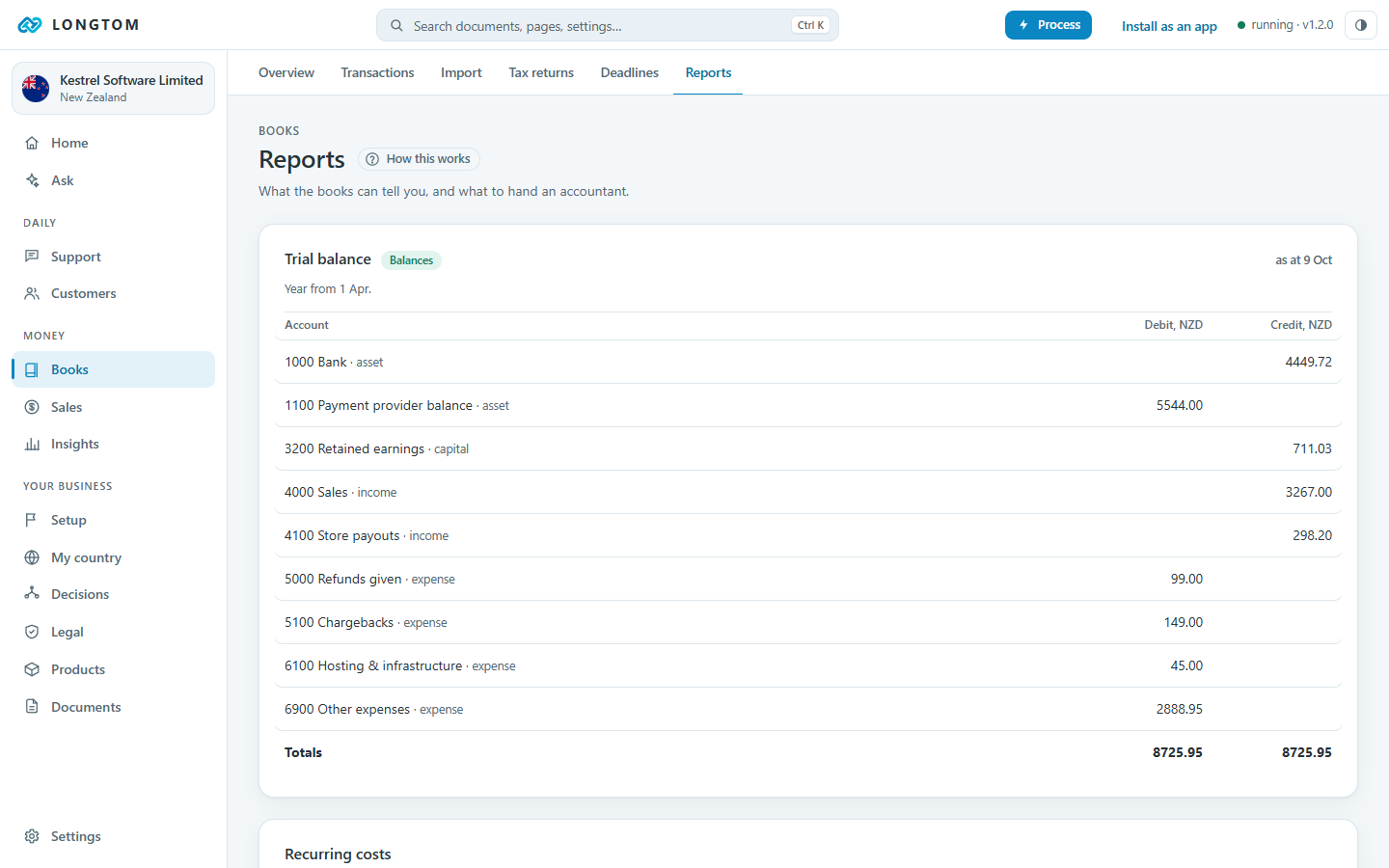
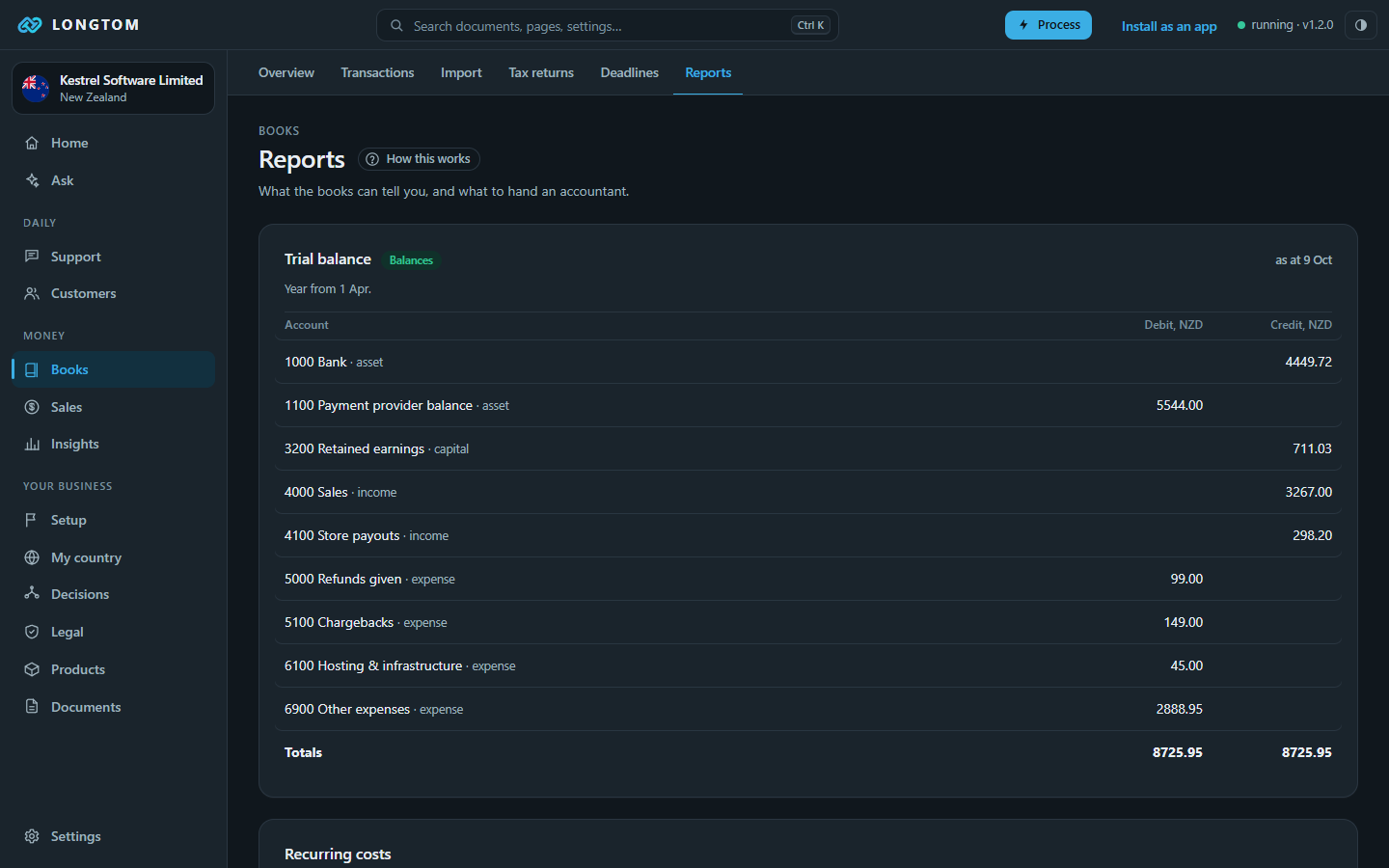
Deadlines lists every filing and payment date for your country. Reports gives the profit and loss, the trial balance and the records pack.
Sales and insights
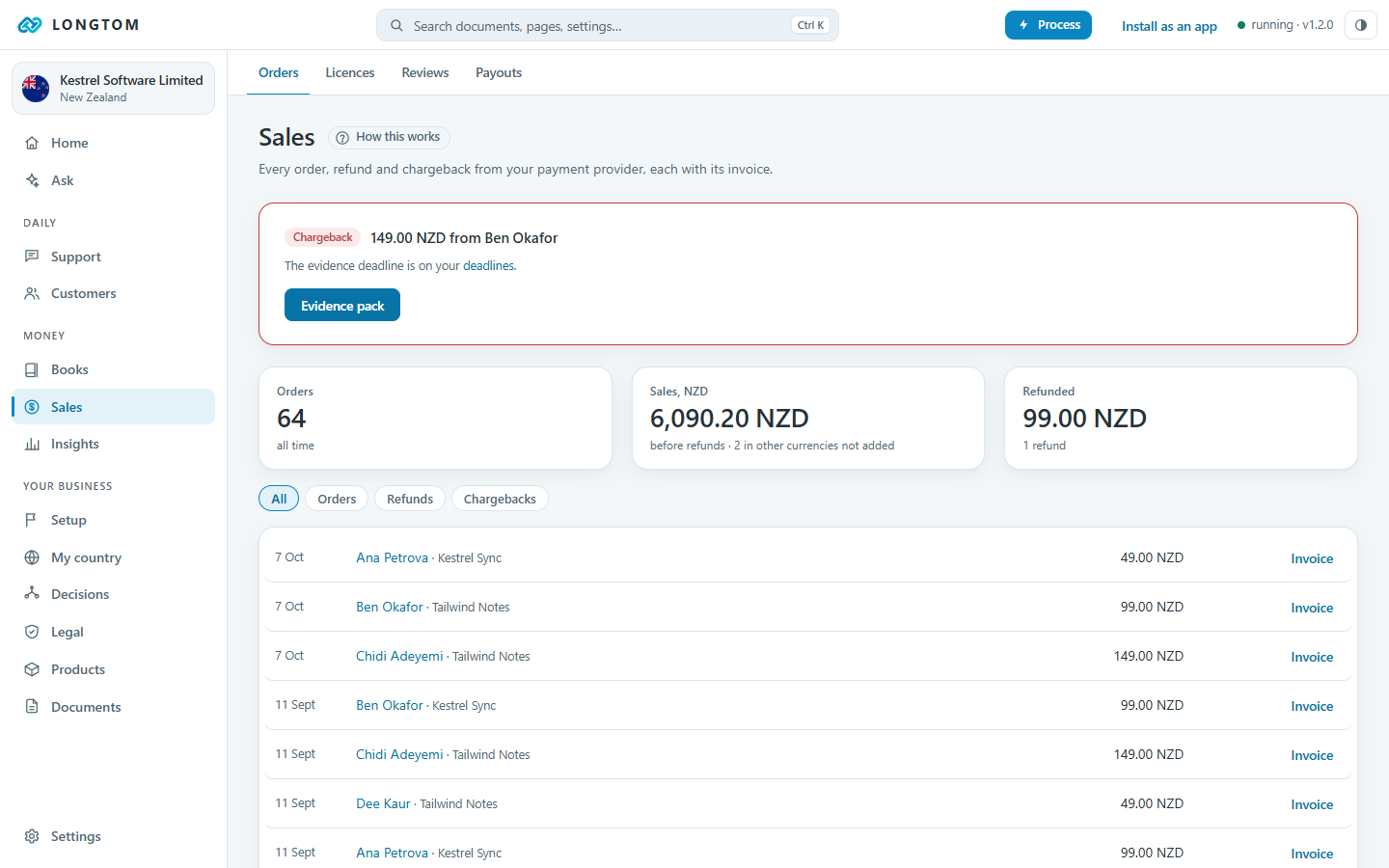
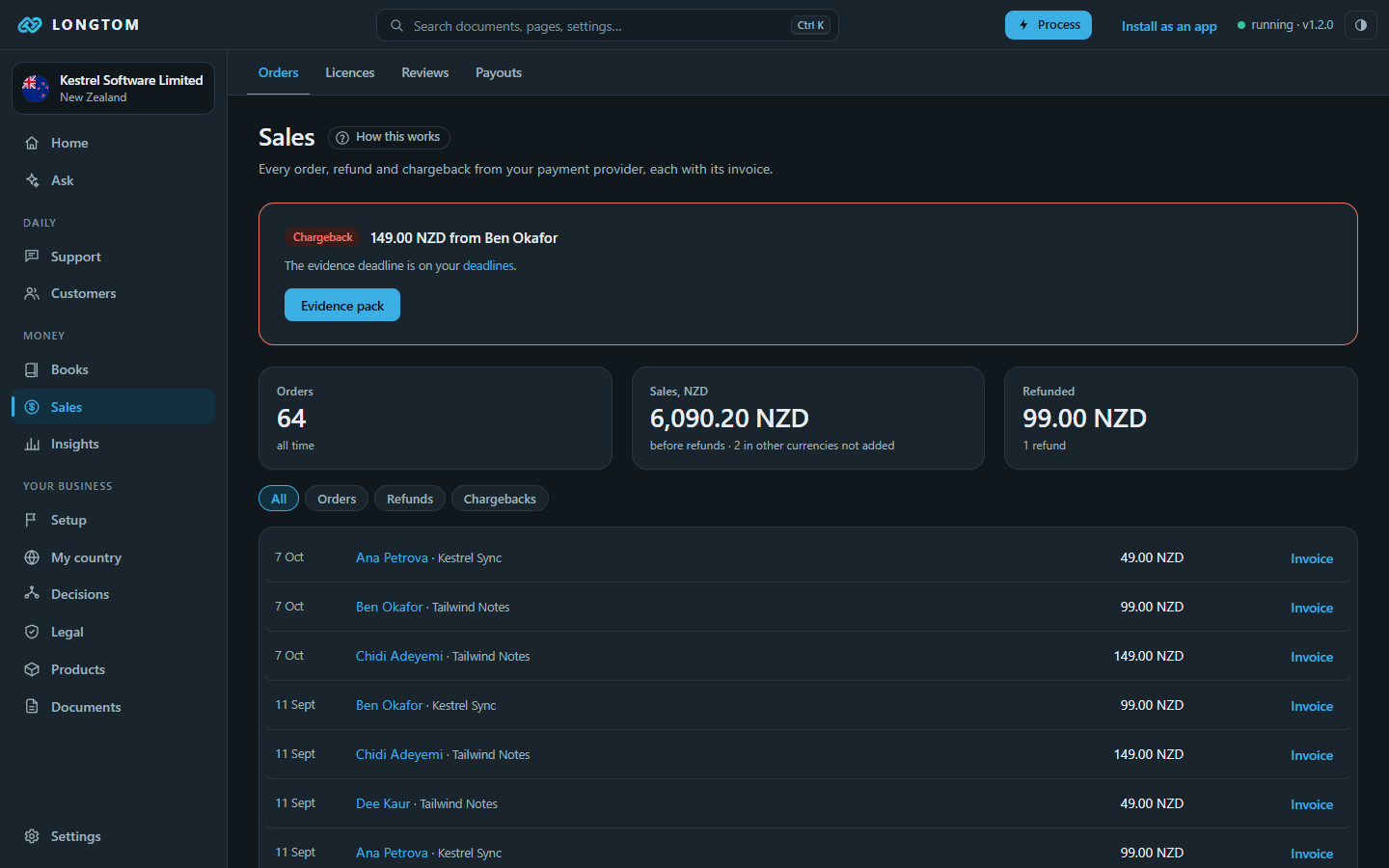
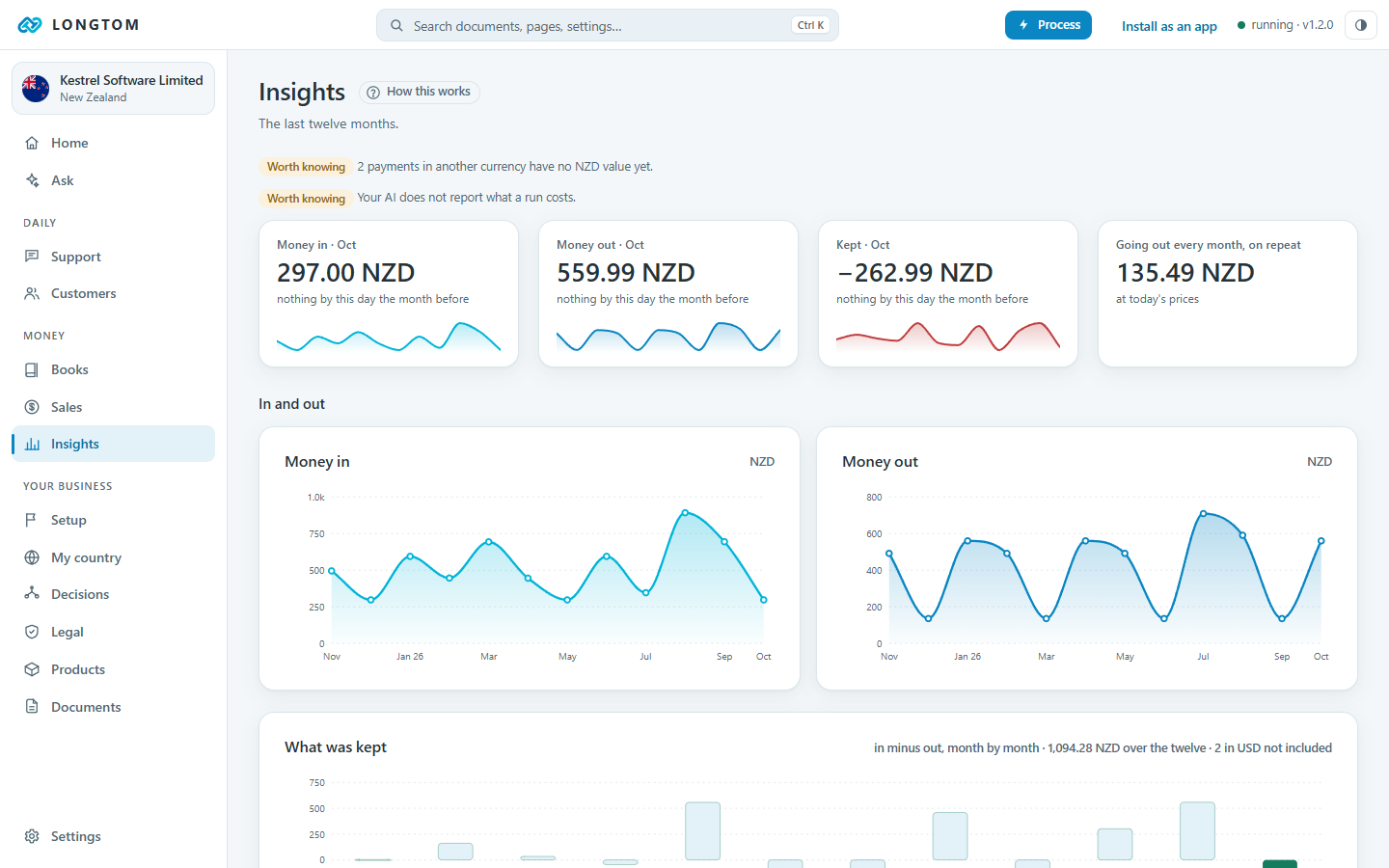
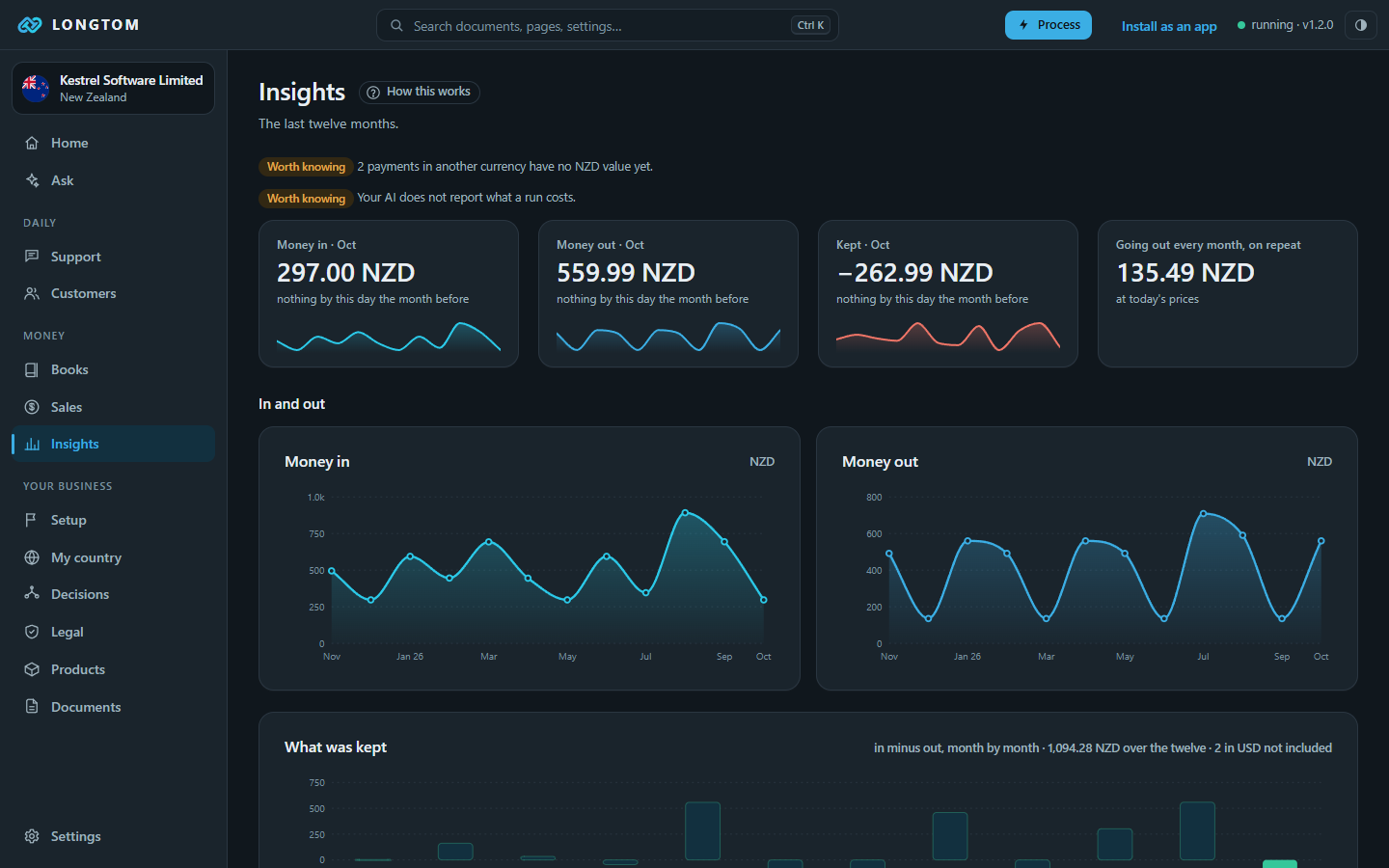
Sales lists orders, licences, reviews and store payouts. Invoices and credit notes are made in your country's form. Insights shows revenue, customers and trends.
Your business
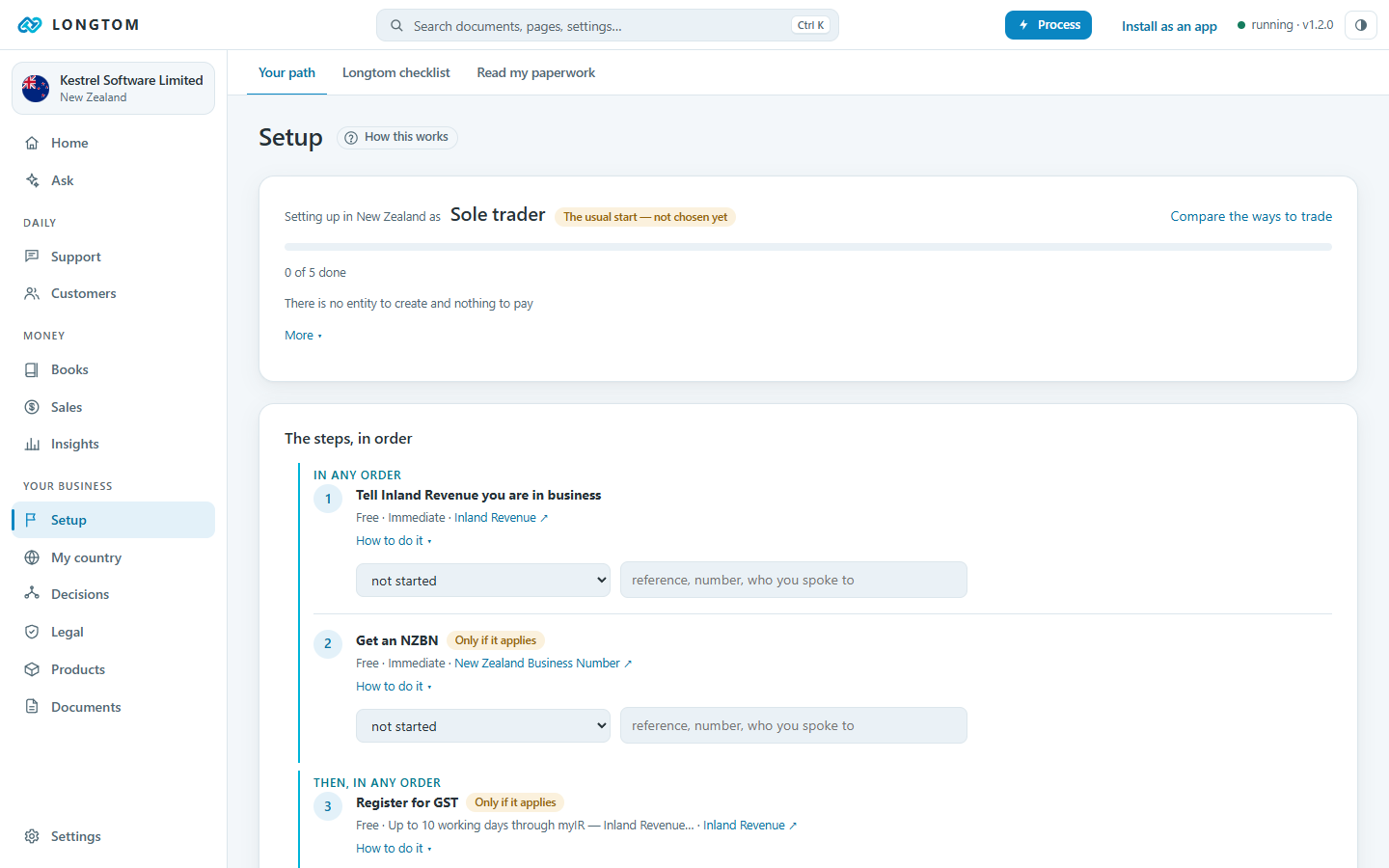
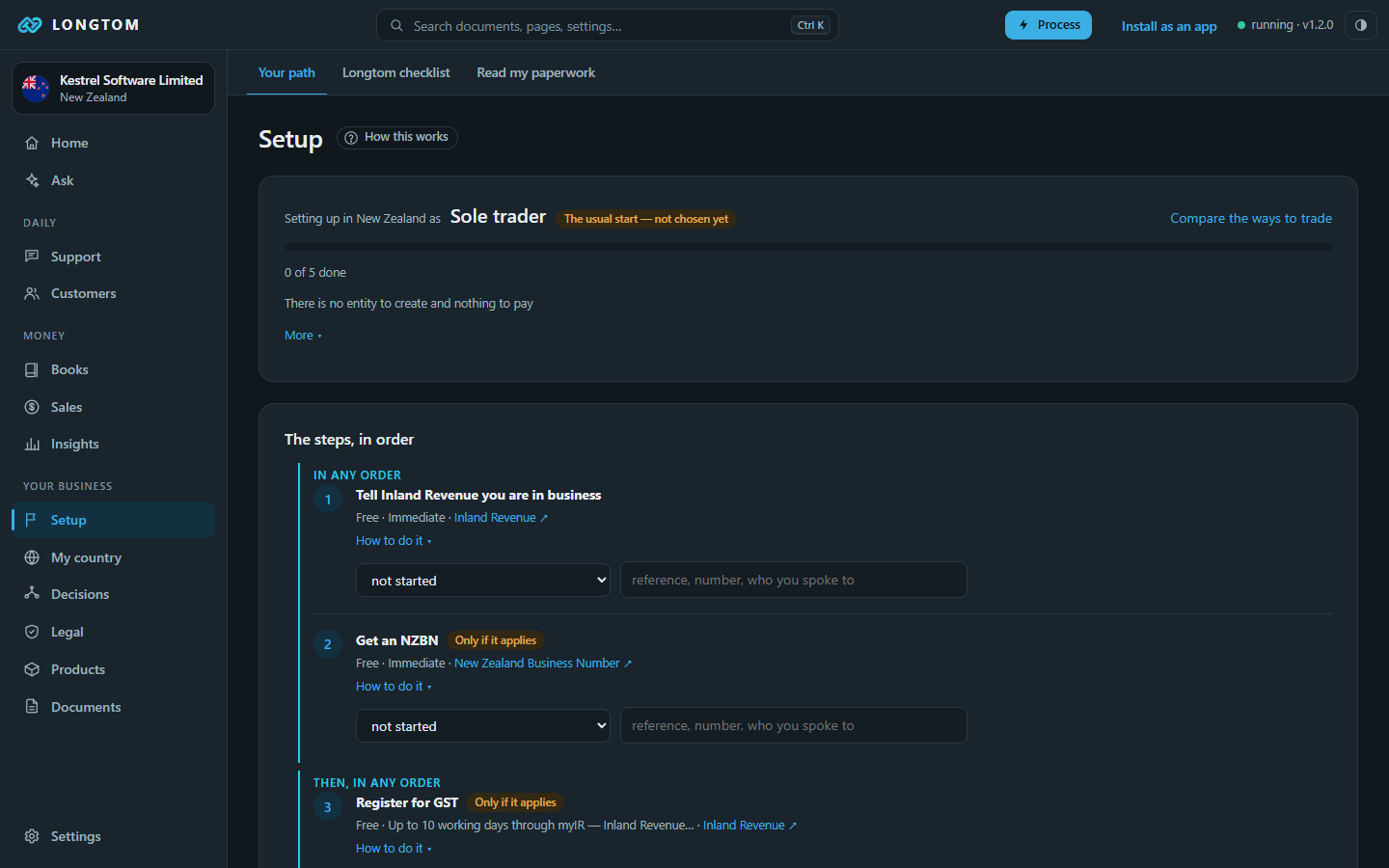
Setup is the path for your country: the registrations in order, what each costs and which blocks which. Mark each step as you go. You do it once.
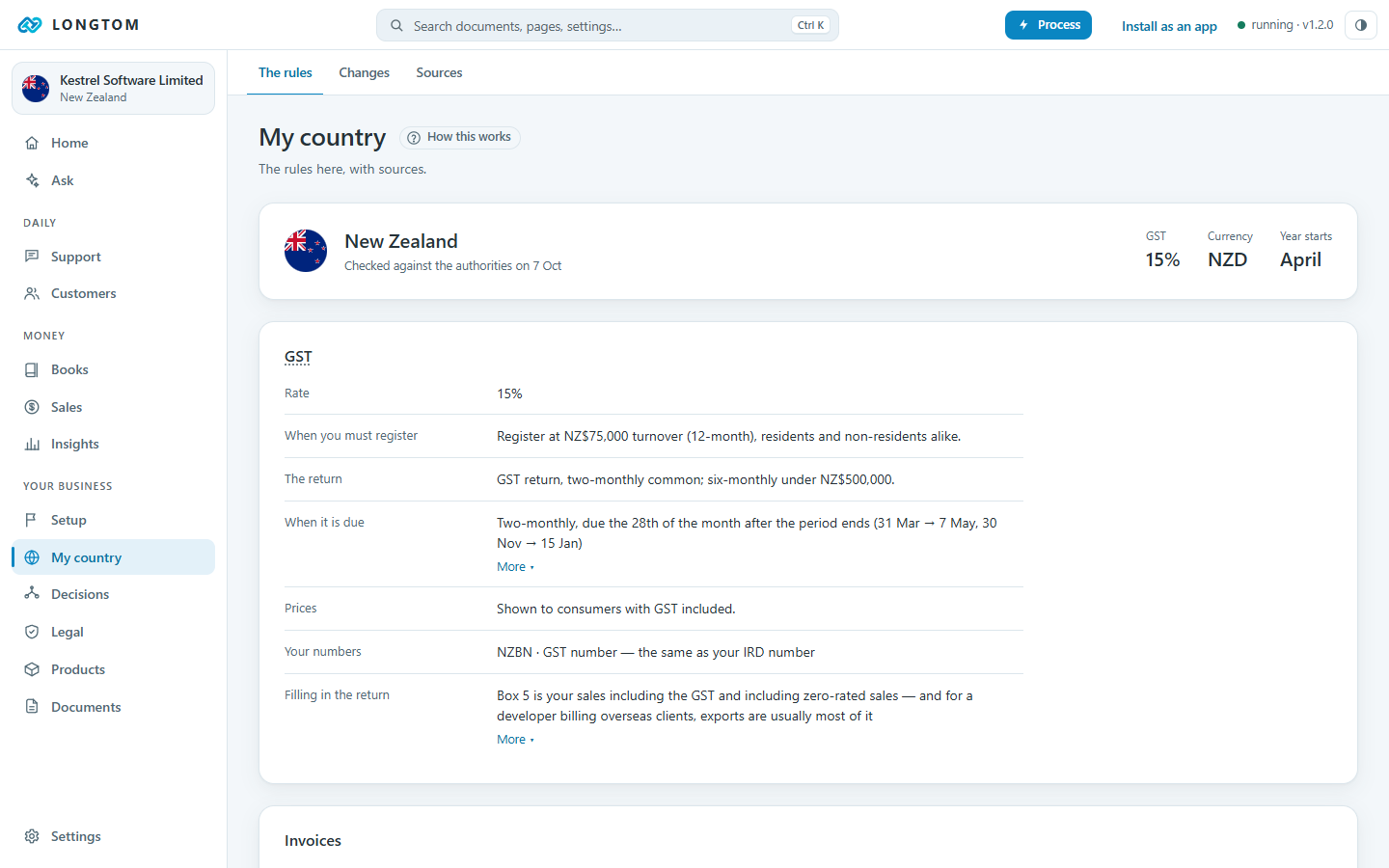
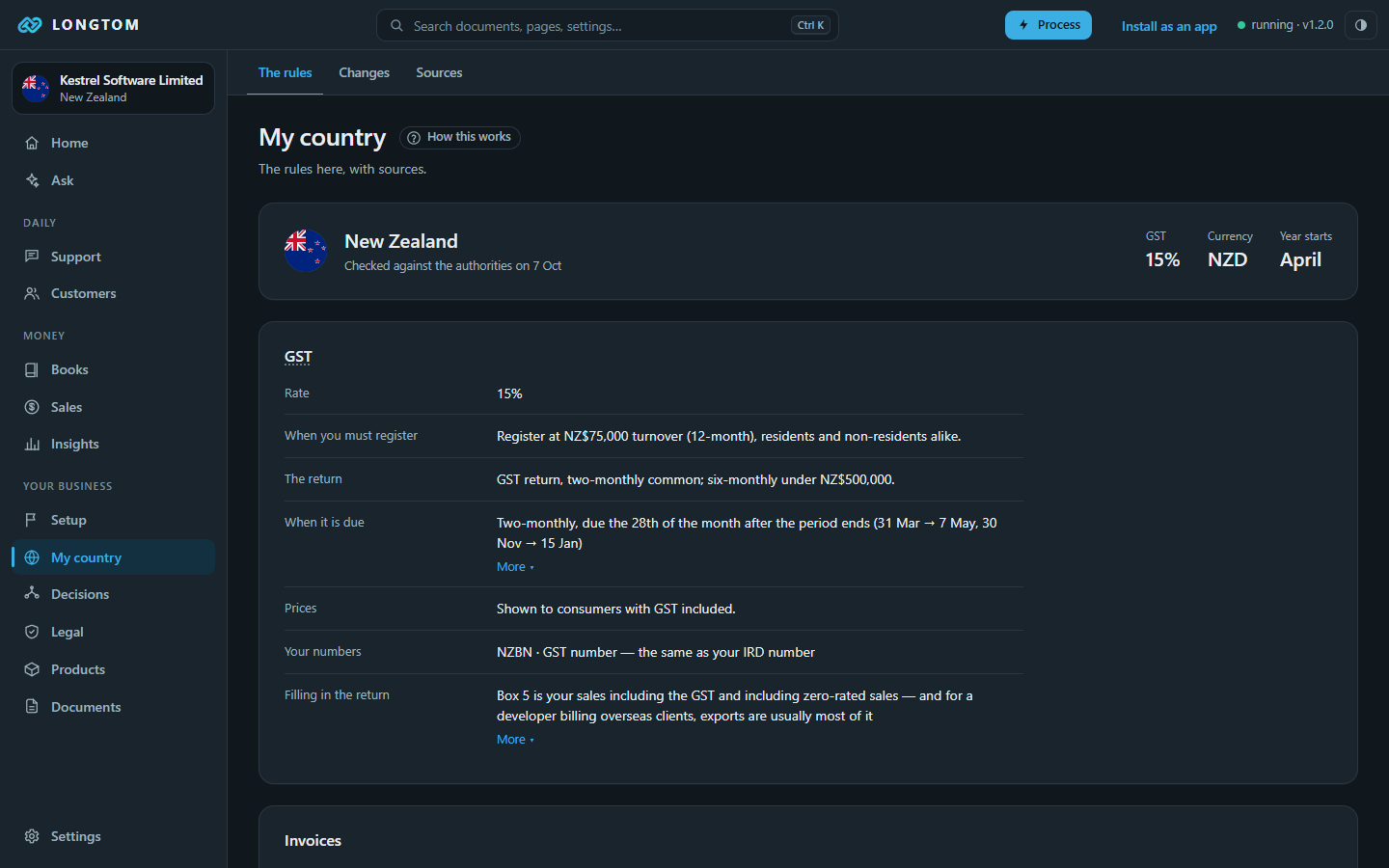
My country holds the rules Longtom knows for where you are, each with the date it was last checked against the authority. Country data updates by itself when a rule changes.
Decisions compares the real options for each choice a business of one has to make (banking, payments, hosting, structure) on what they cost you in money and time.
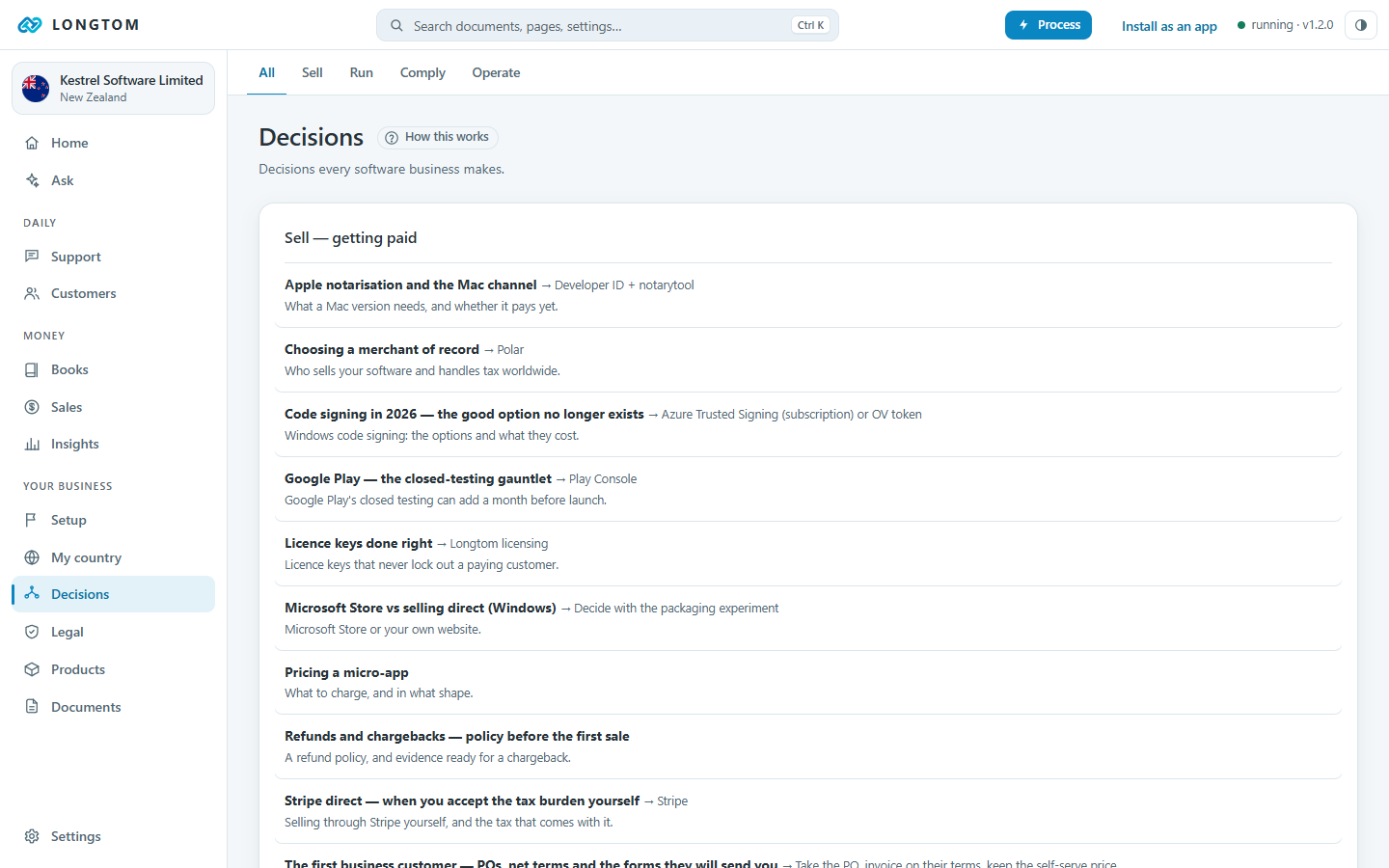
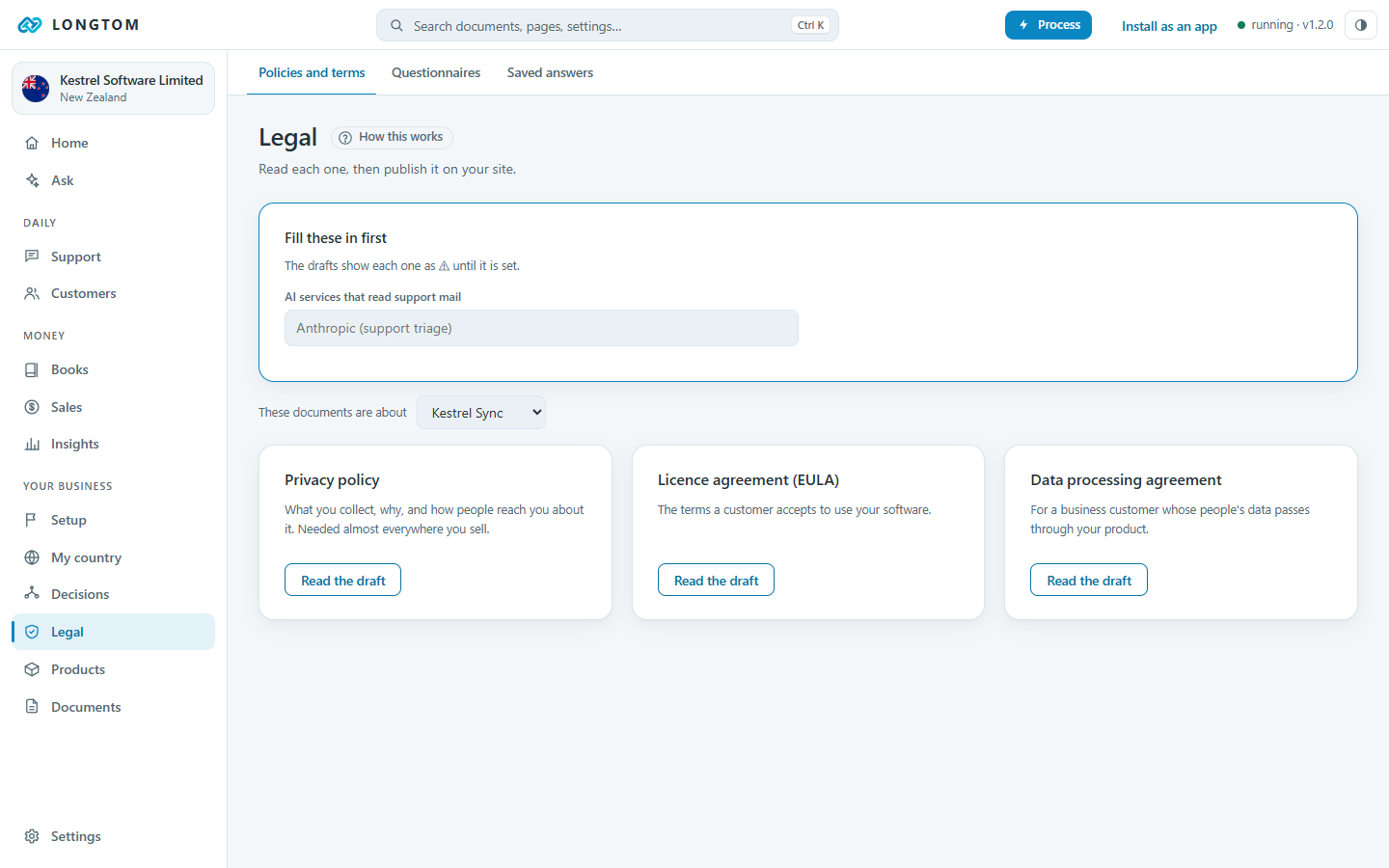
Legal drafts your privacy policy, terms and answers to security questionnaires from what Longtom knows about your business. Products holds what you sell, with its sites and domains.
Documents
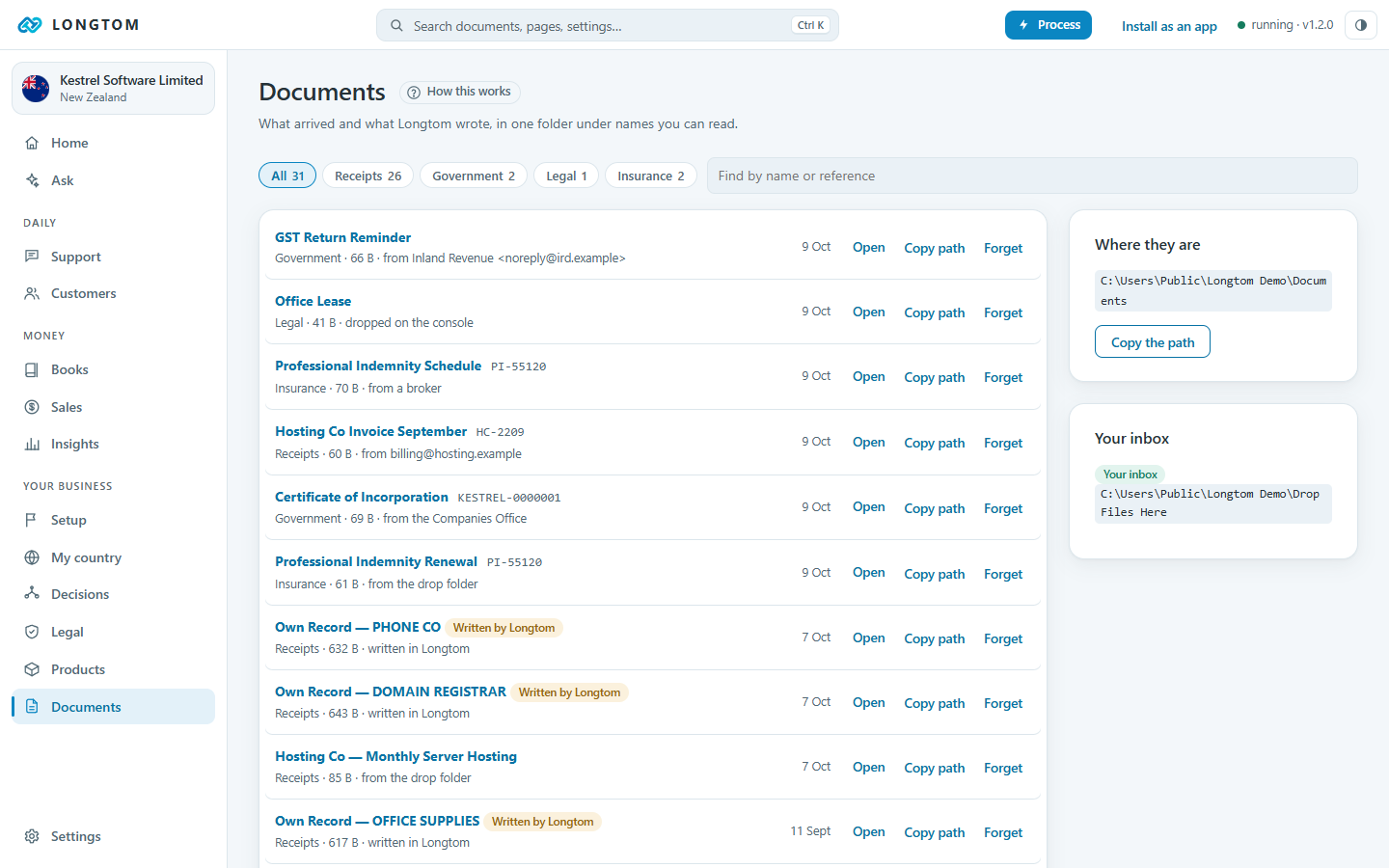
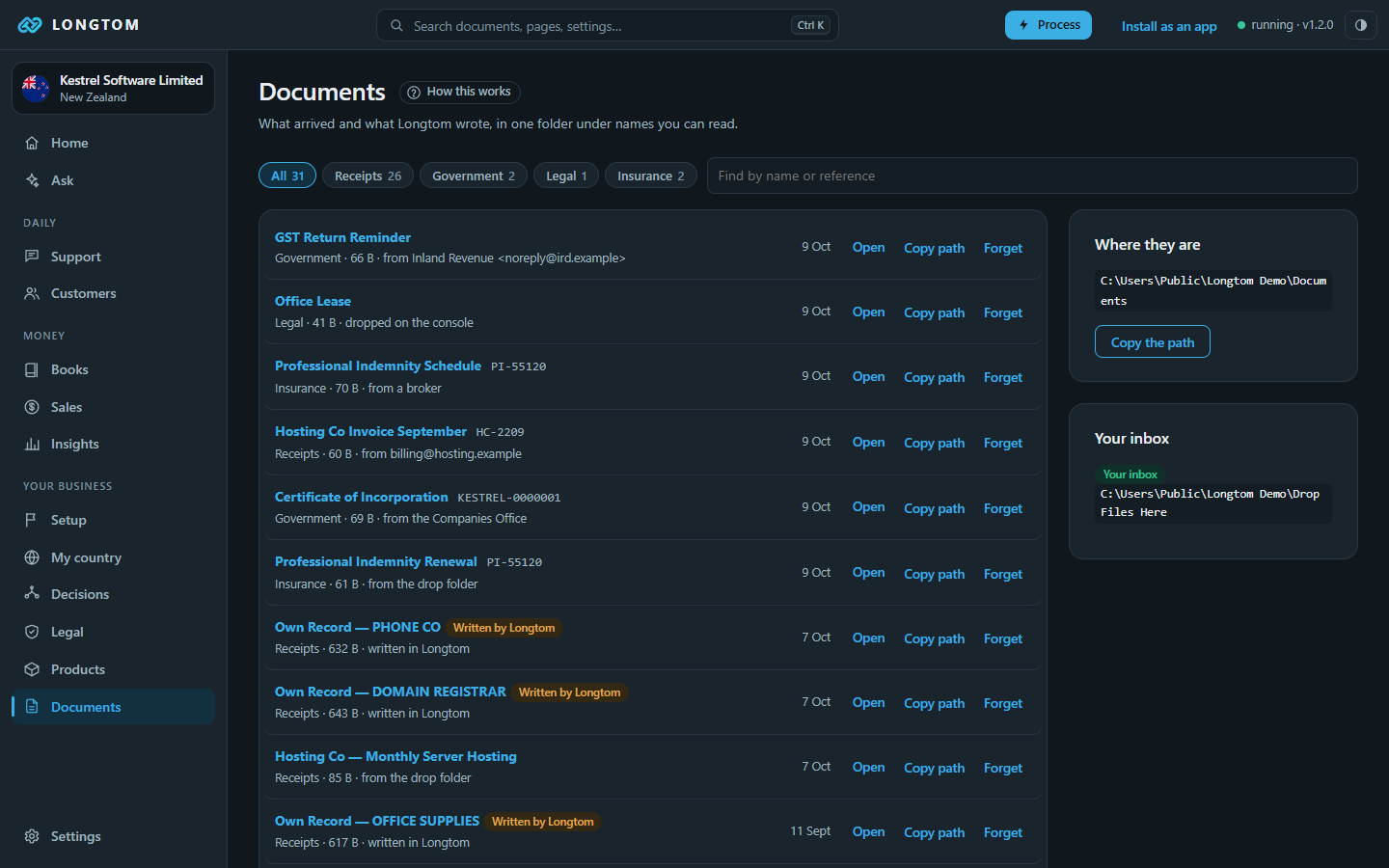
Everything filed and everything Longtom wrote, in one folder, under readable names, sorted by the date each document carries. The folder works without Longtom running.
Ask
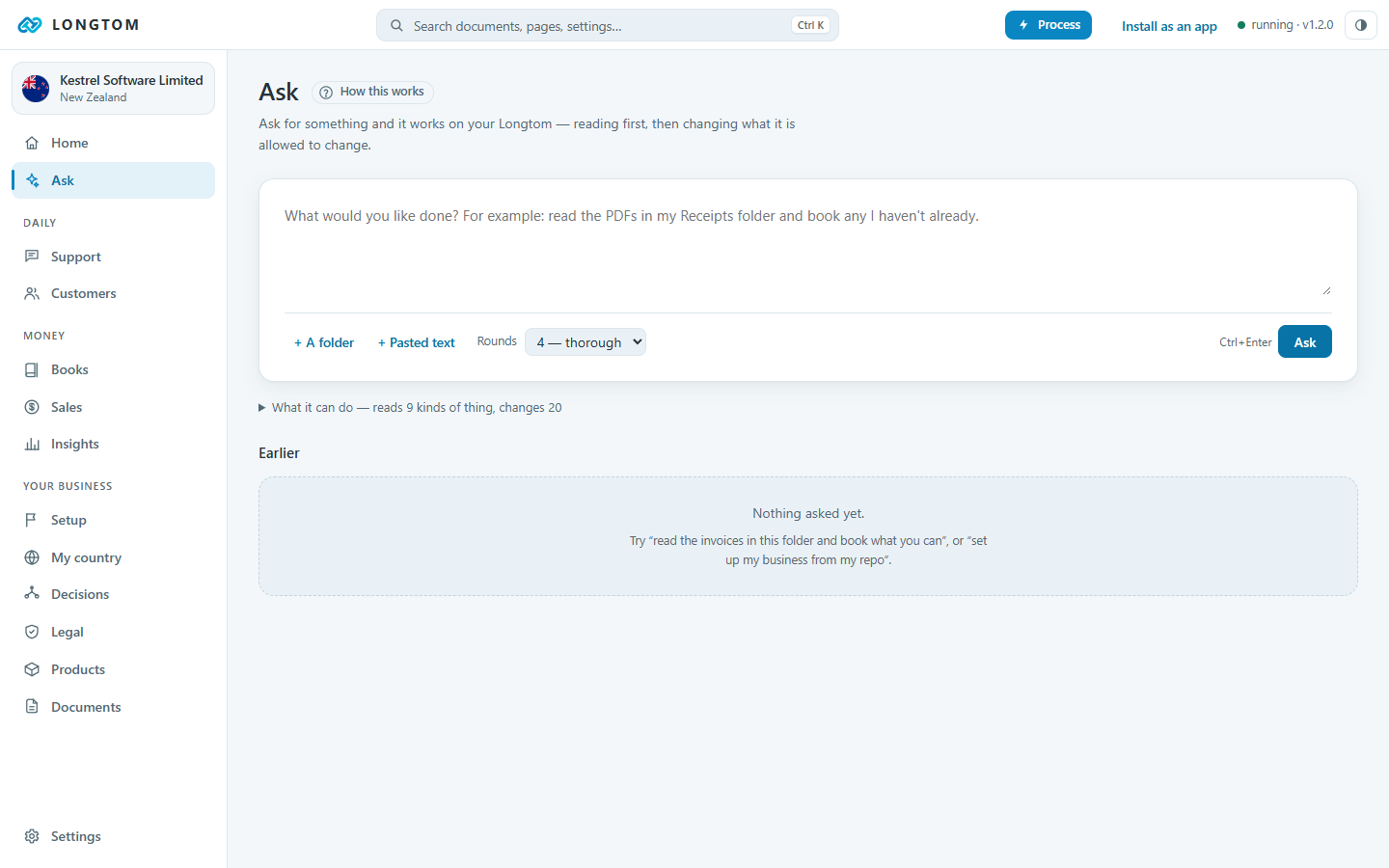
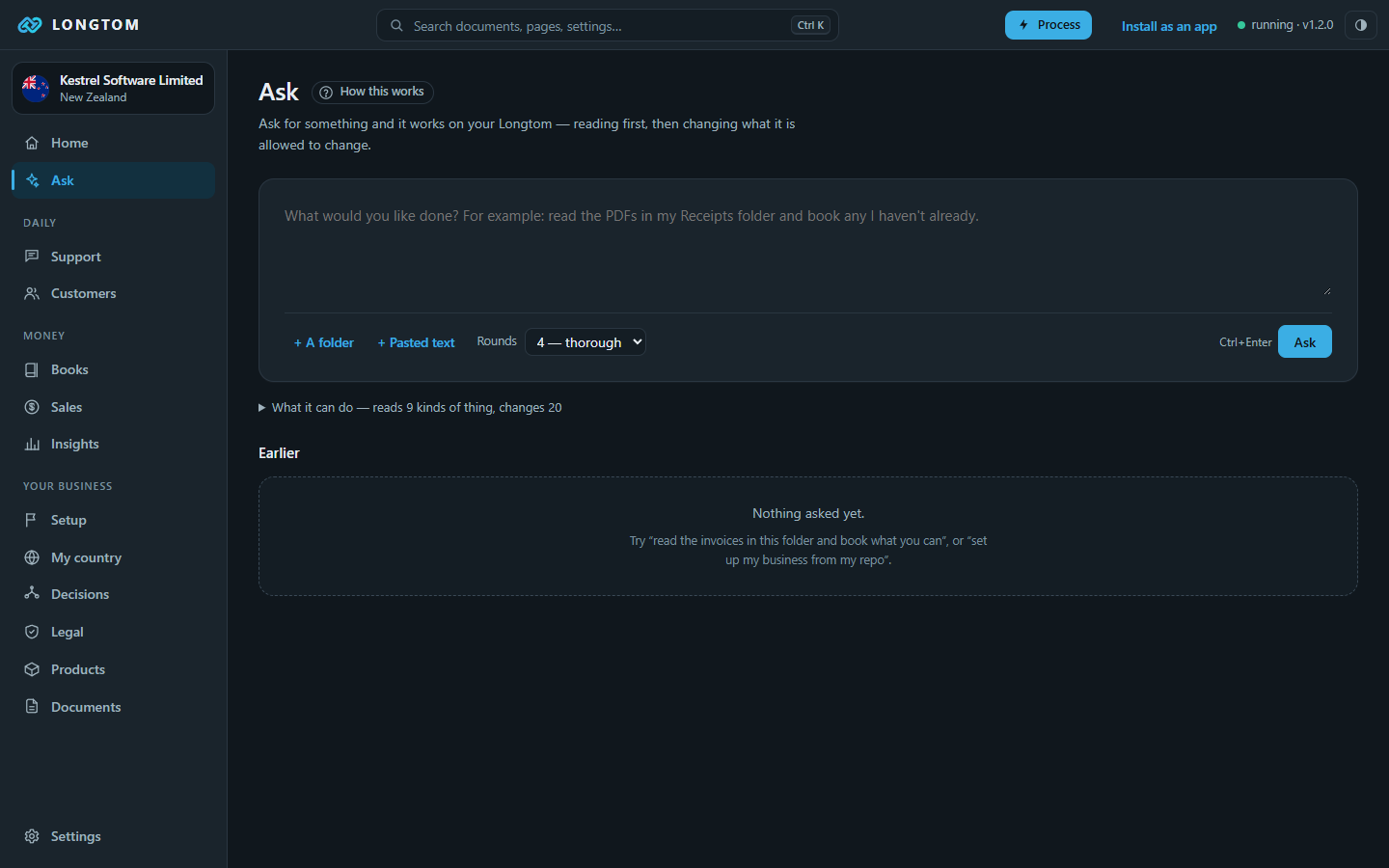
Ask is your AI with Longtom's knowledge and tools. Ask how the books stand, or have it file something, prepare a return or add a deadline. It can prepare a filing but never marks one lodged, and it cannot read your secrets.
Your AI
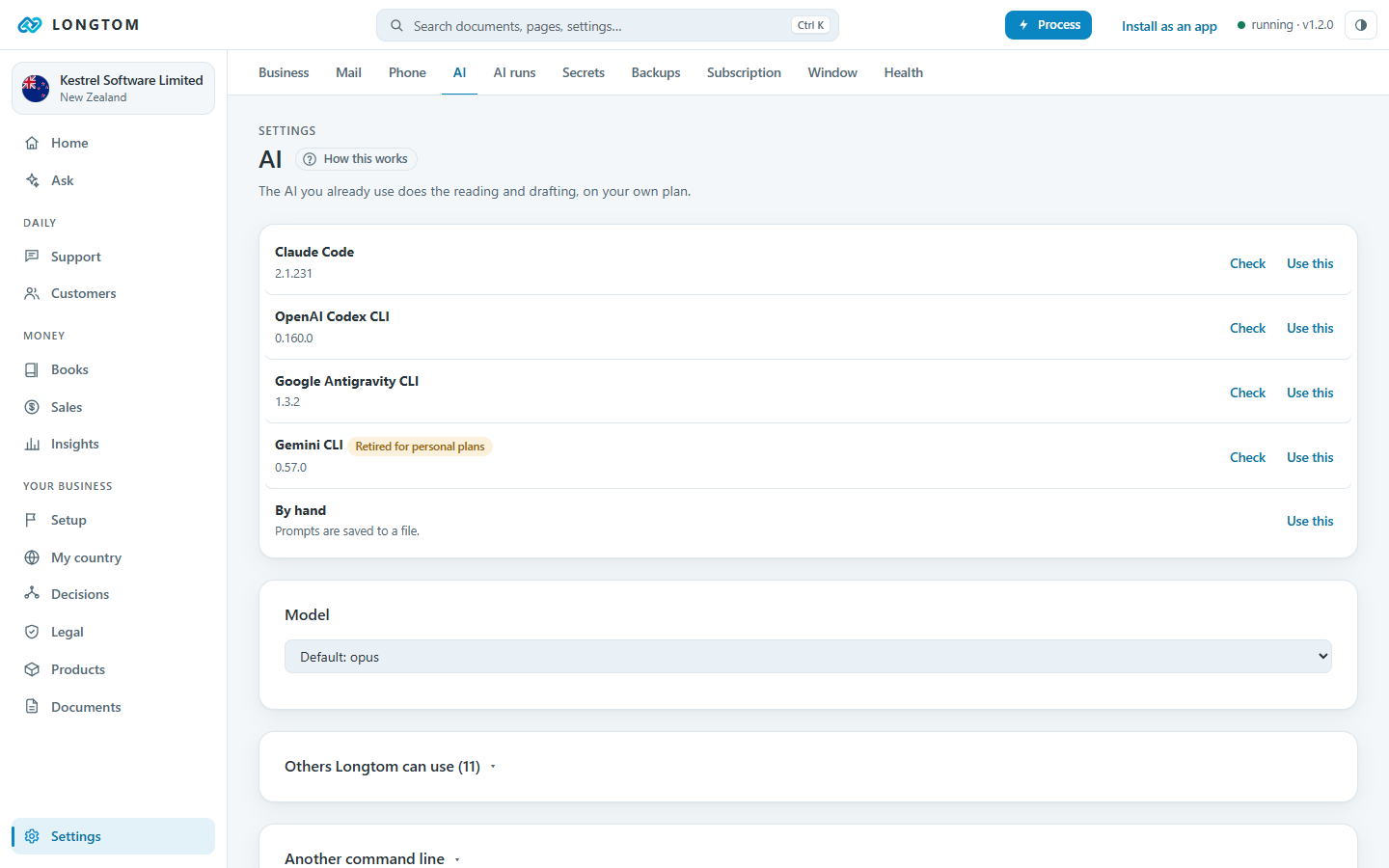
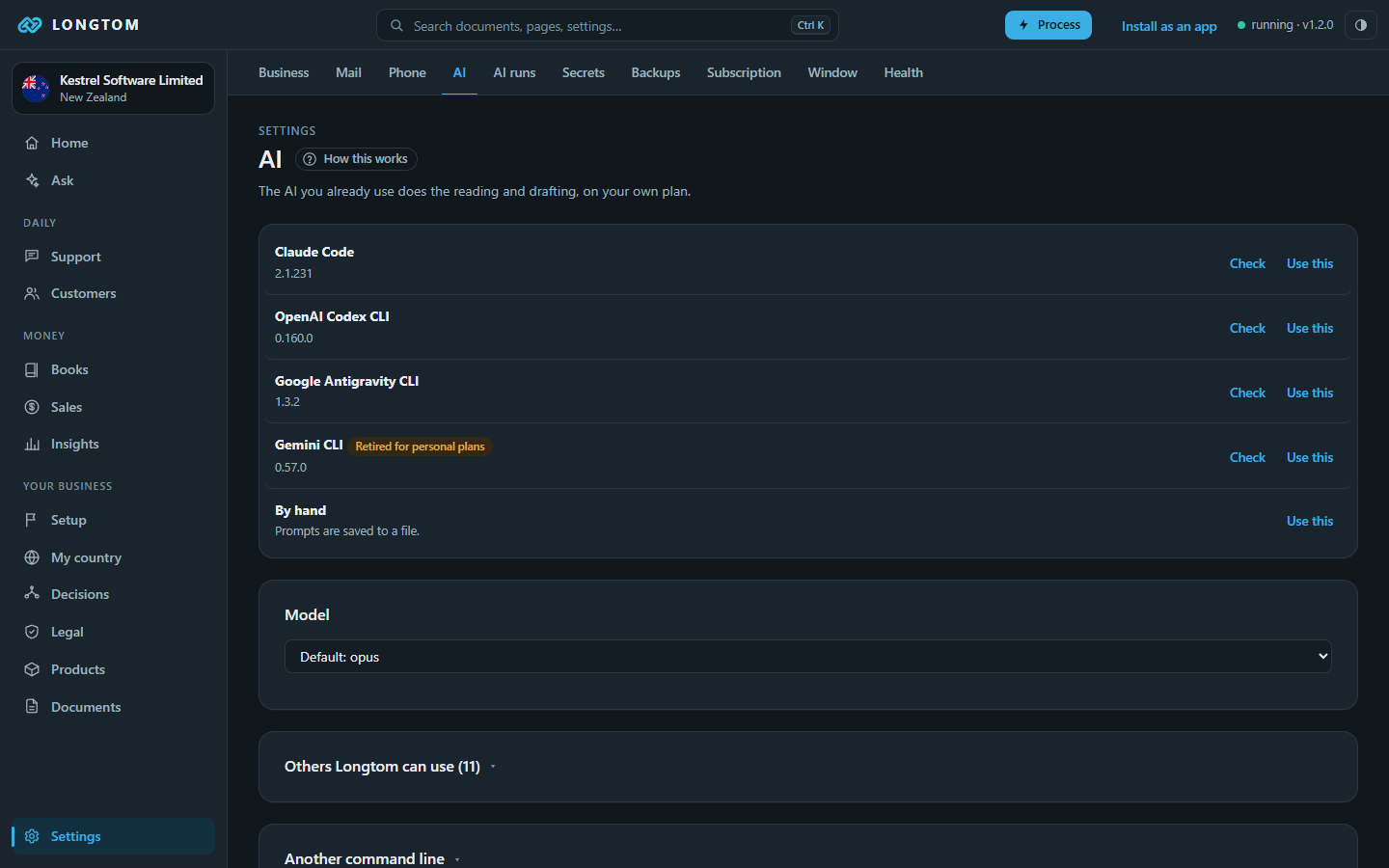
Settings › AI lists the coding CLIs found on this computer. Choose one with Use this; Check runs a quick test. Each has a default model, and the list shows the other models that CLI offers.
Secrets and the lock
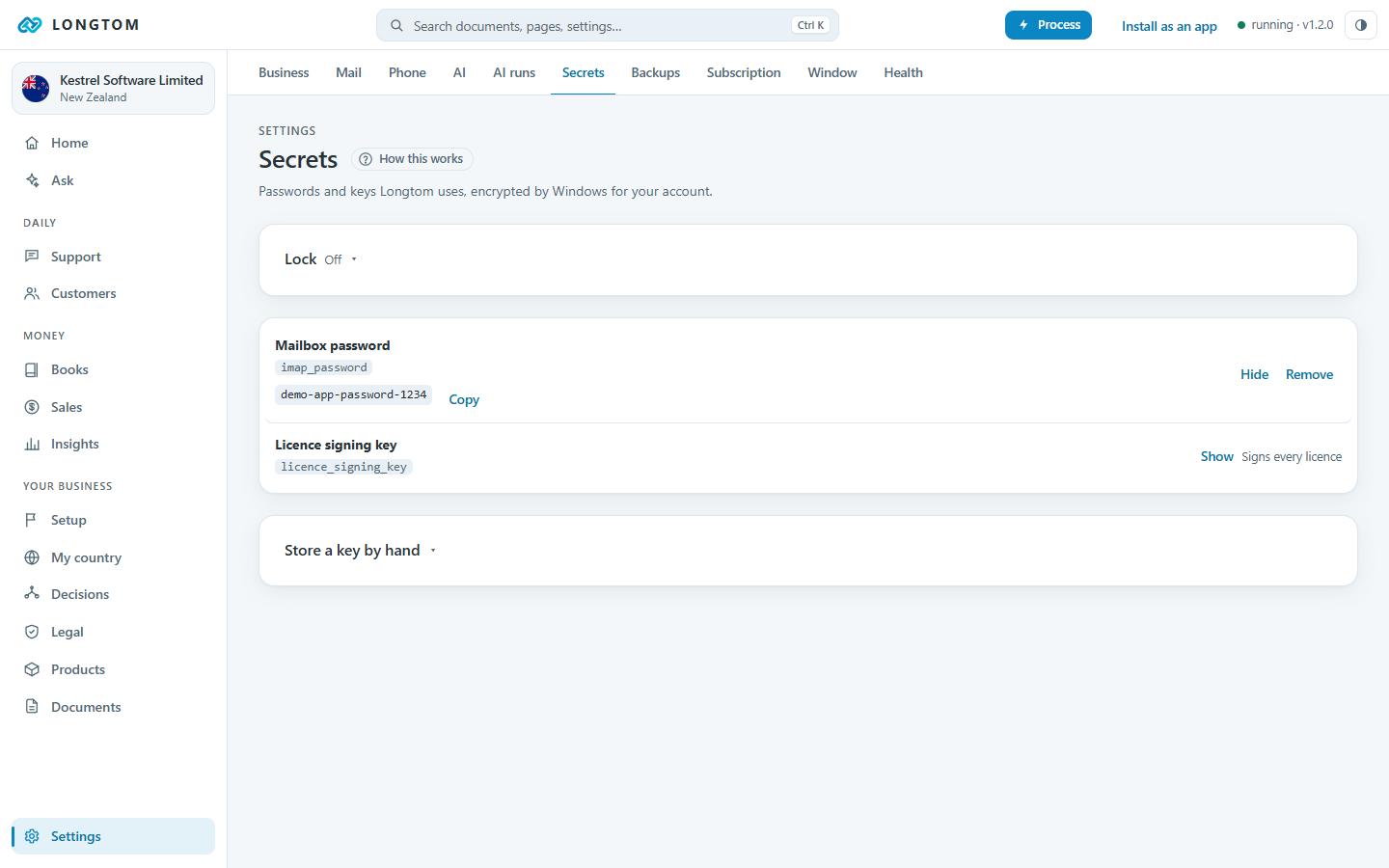
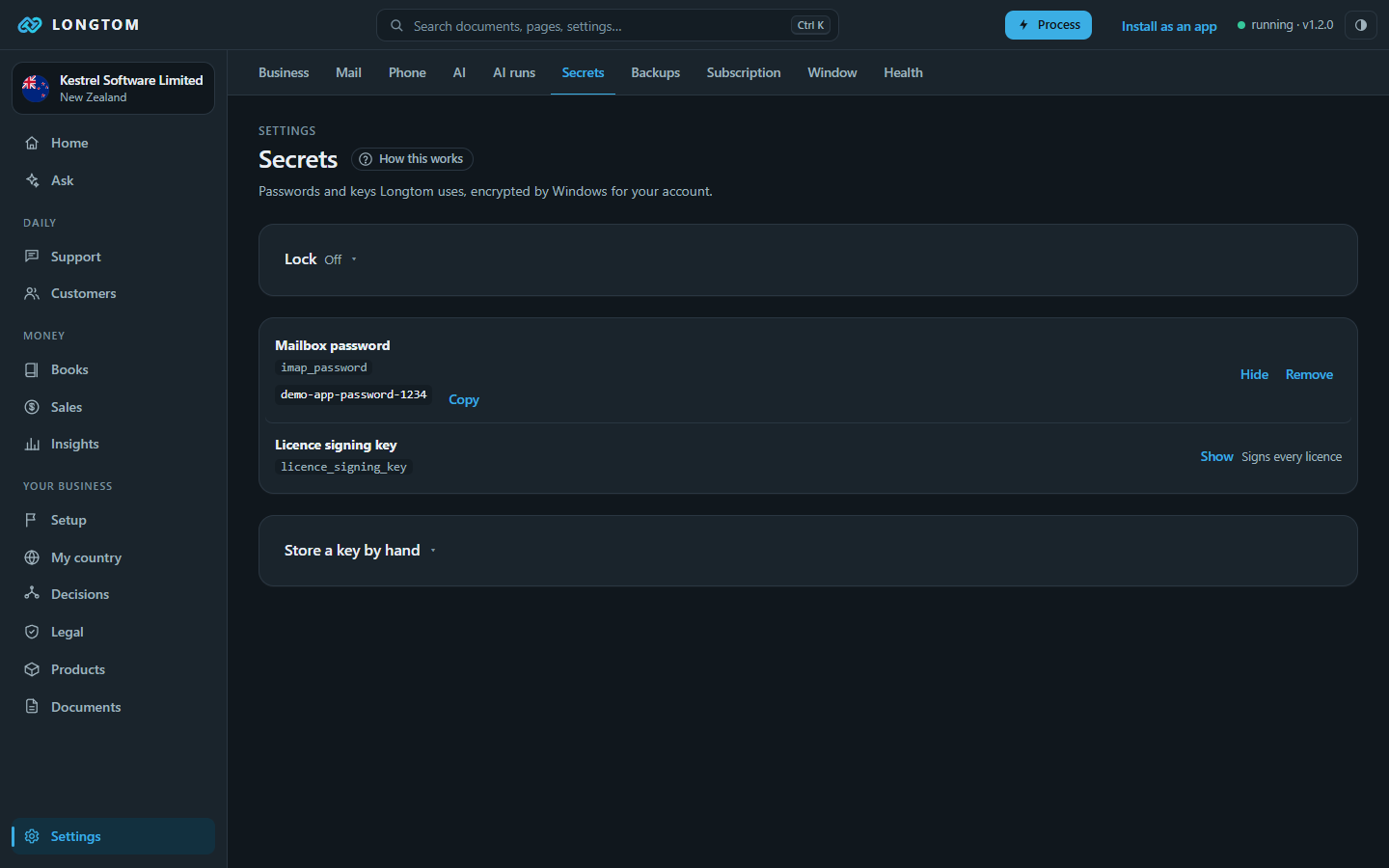
The passwords and keys Longtom uses are kept in a vault encrypted by Windows for your account, never in the database. Settings › Secrets lists them. Show reveals one, with Copy; it hides again after 30 seconds.
Lock
Optional. Open Lock on the same page and choose a PIN, whether it guards the whole app or only the secrets, and how long you can be away before it locks again. Lock now locks at once.


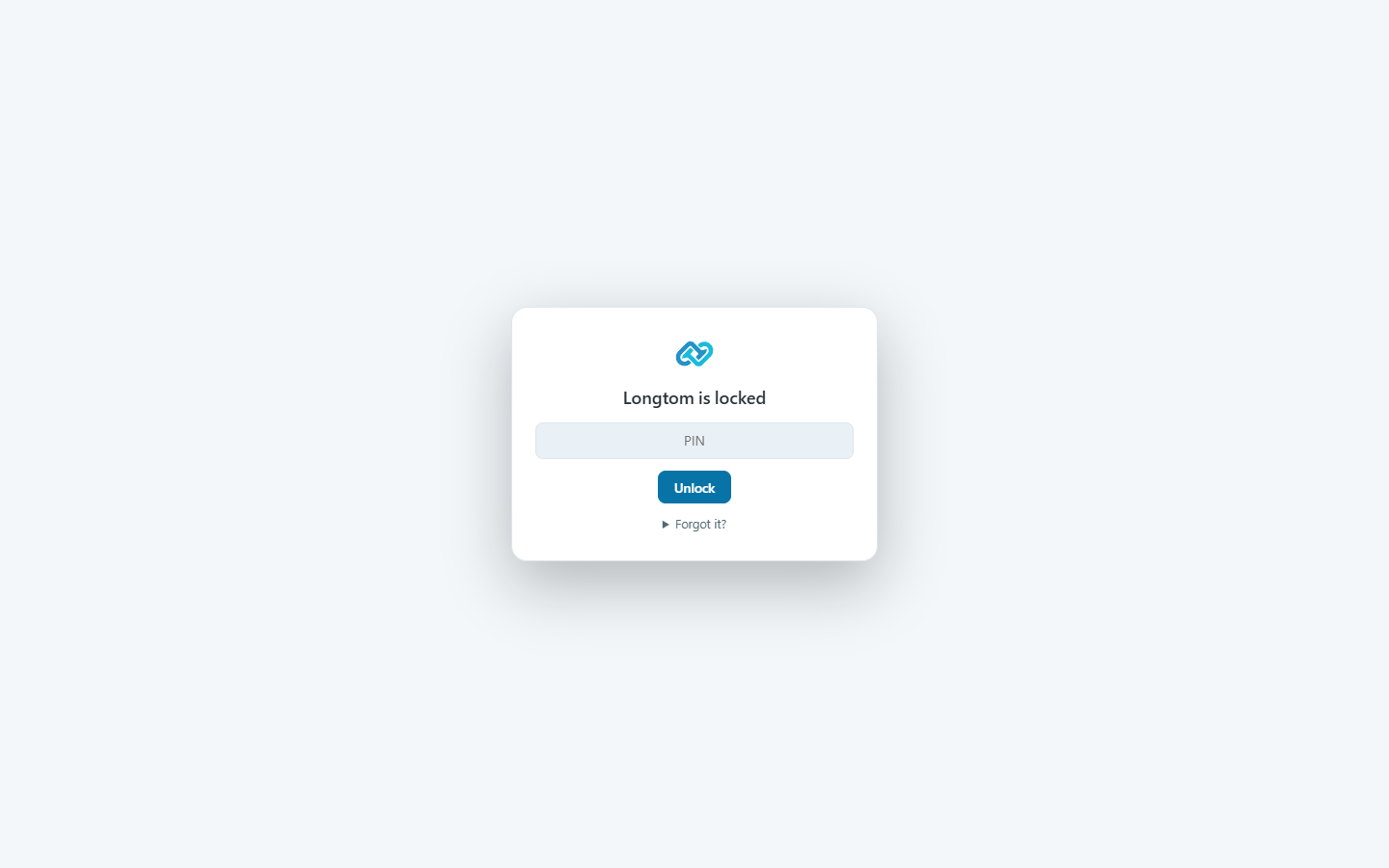
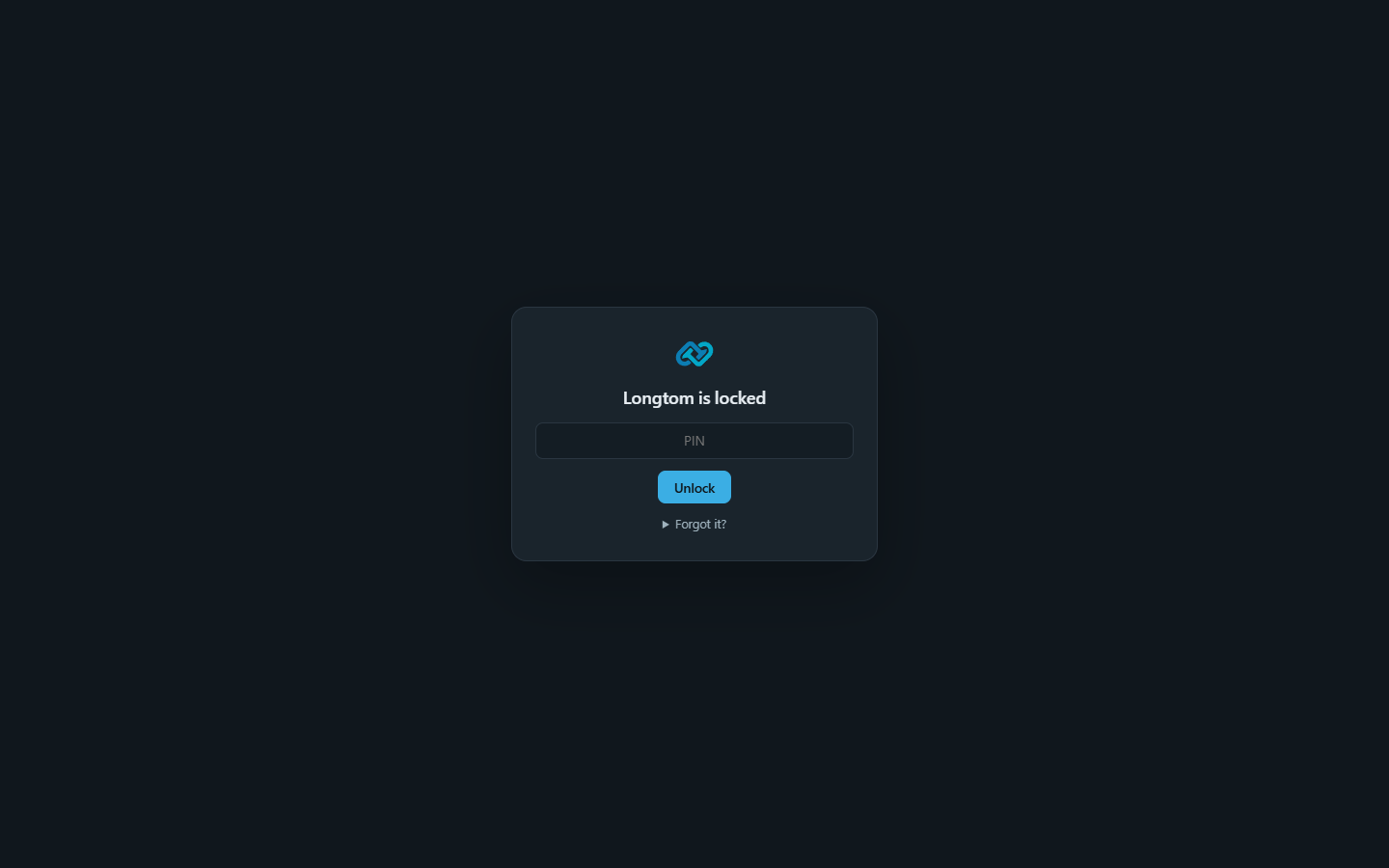
Forgot the PIN? Forgot it? takes your recovery key and removes the PIN. Processing carries on while Longtom is locked.
Backups and a new computer
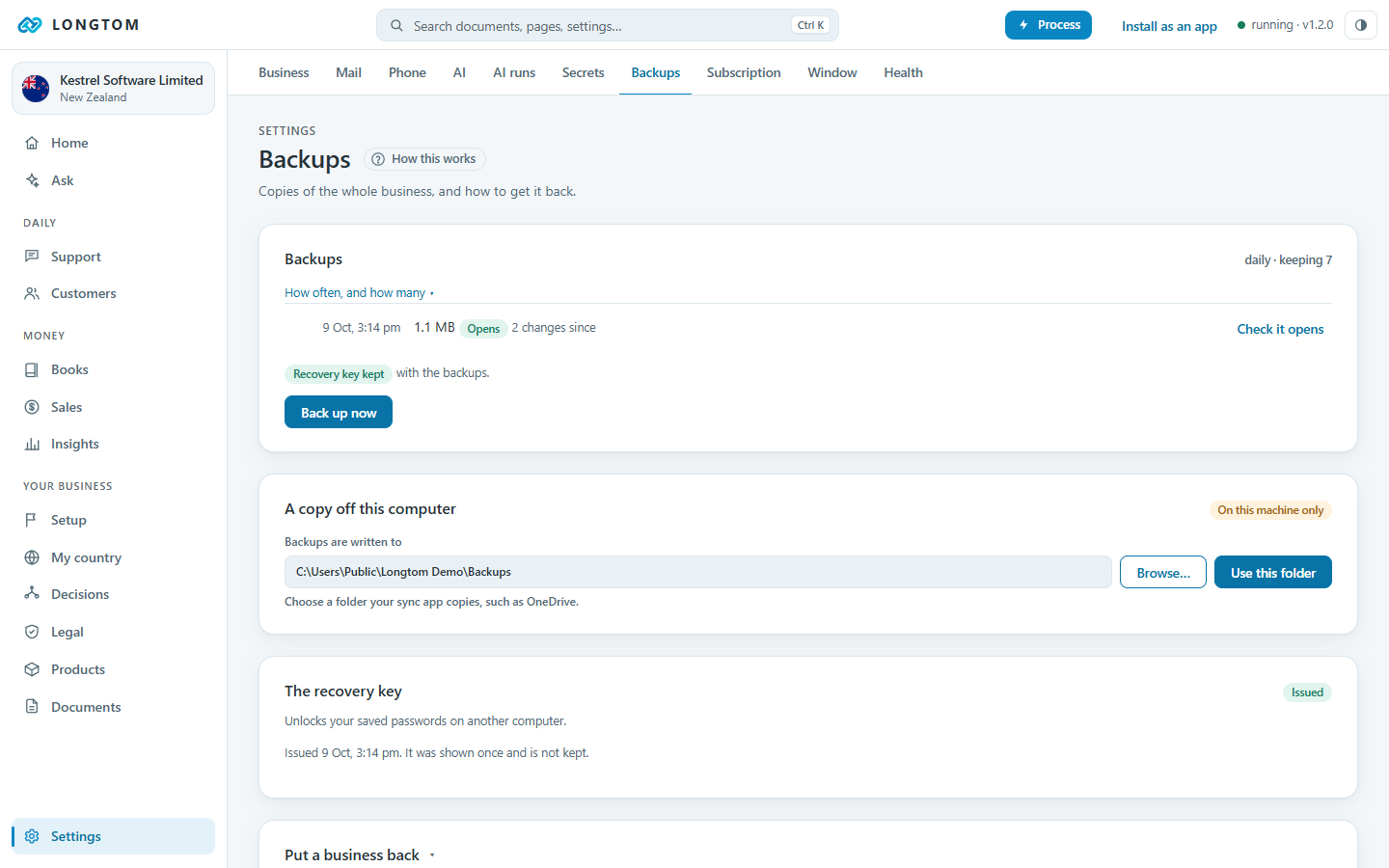
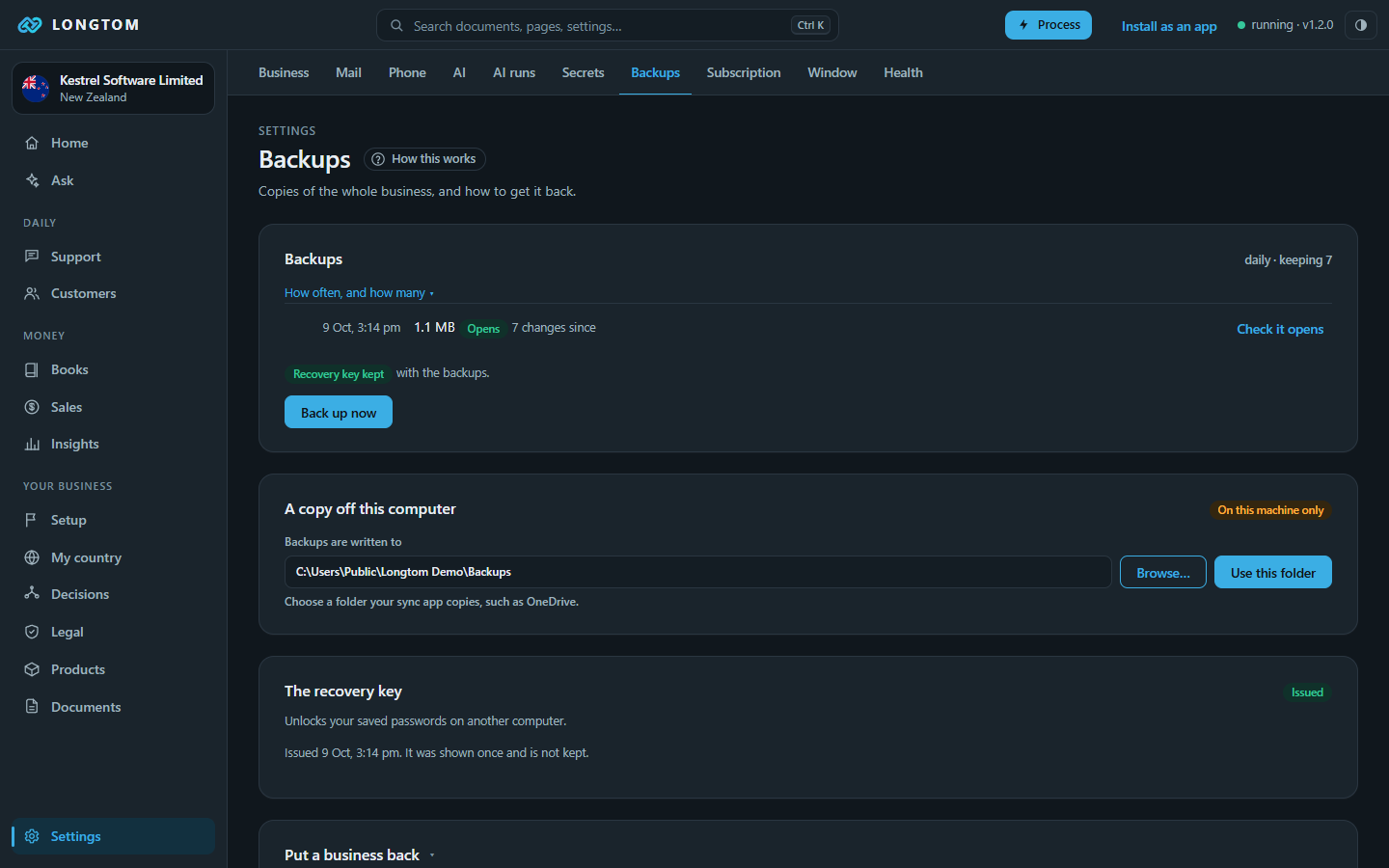
Longtom backs up every day. On a computer with OneDrive, backups go to OneDrive\Longtom Backups, with your documents and your recovery key beside them, so a new computer can restore everything. Choose another folder in Settings › Backups.
A new computer, or a dead drive
- Install Longtom and sign in to the same OneDrive, Dropbox, Google Drive or iCloud.
- Open it. Home says Welcome back and names your business.
- Press Bring it back. Longtom restores and restarts, and your saved passwords unlock by themselves.
For a backup somewhere else, choose Put a business back and point it at the file.
Online backup
An optional add-on: an encrypted copy in Longtom's own storage, up to 5 GB, that only your recovery key opens. Turn it on in Settings › Backups.
Price and subscription
Longtom is free until 100 days after your first booked income, then US$99.99 a year or US$11.99 a month, through the Microsoft Store. Online backup is US$39.99 a year or US$4.99 a month.
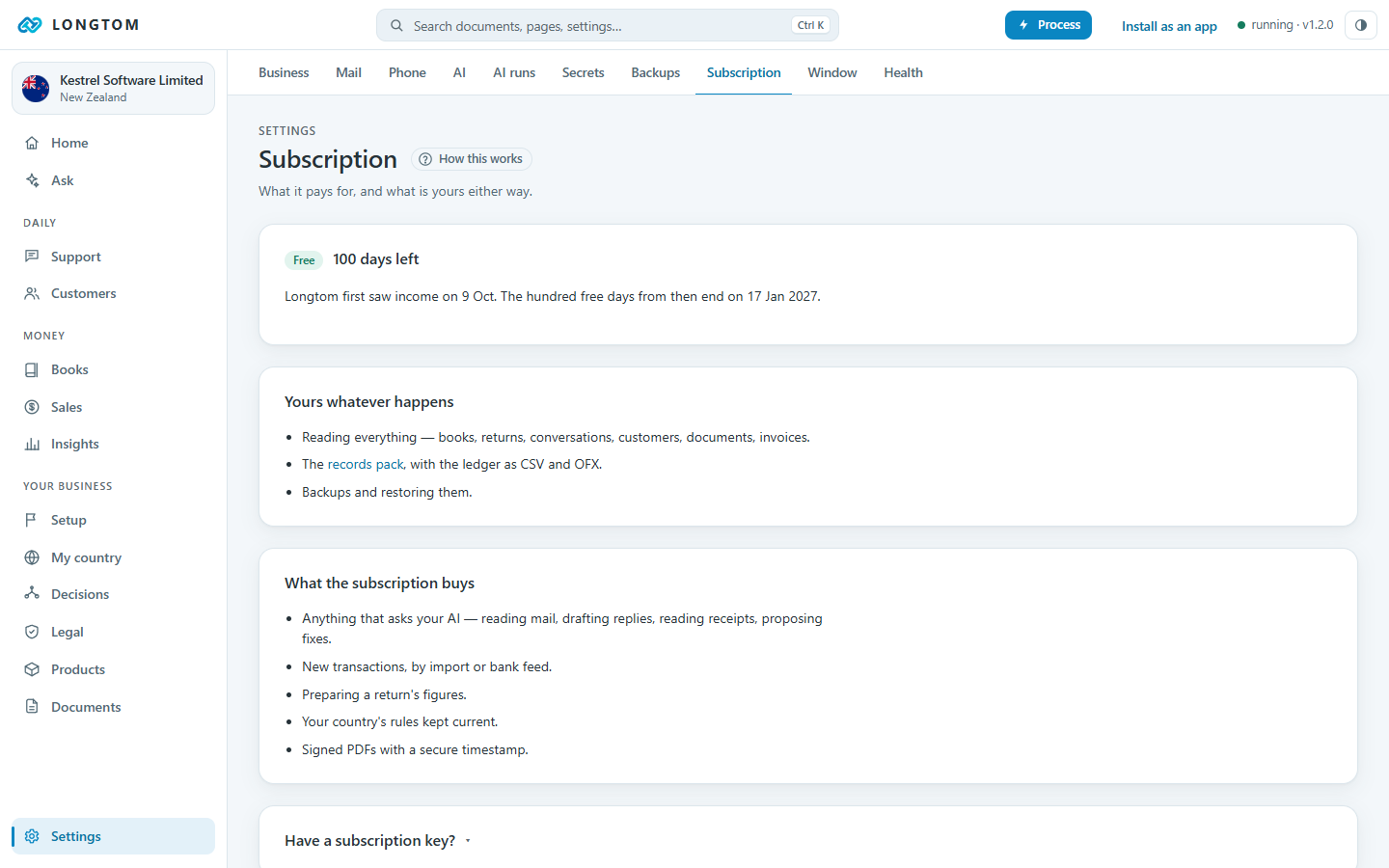
Stop paying and you keep everything: books, invoices, documents, exports and backups. New processing stops.
Health and the window
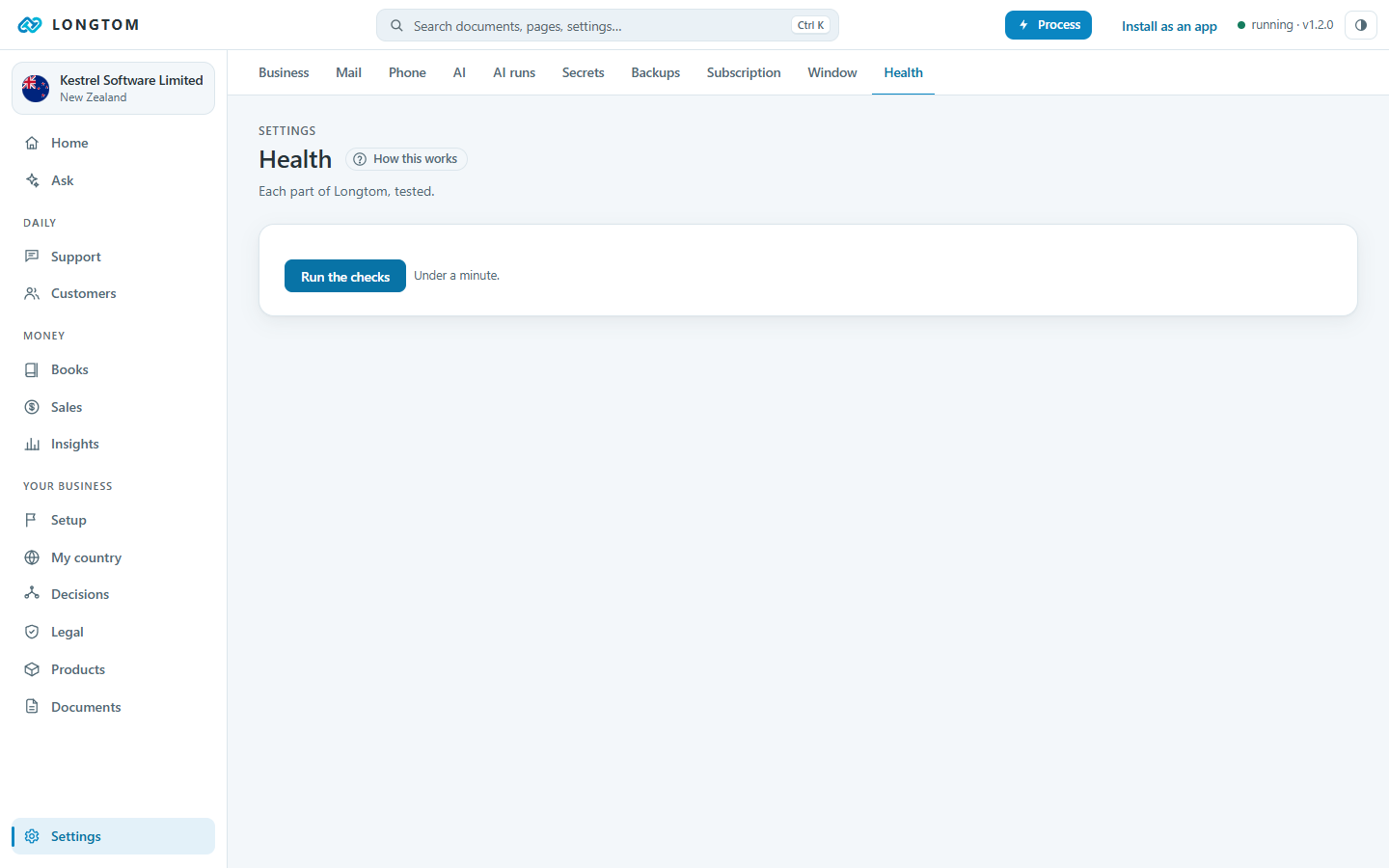
Settings › Health checks the install works: the database, the vault, your AI, the filing calendar and the backups, with a fix for anything that is not right.
Closing the window leaves Longtom running in the tray, so the schedule carries on. Right-click the tray icon for Open Longtom, Process now and Quit Longtom.
Taking your books with you
Everything is in one folder, %APPDATA%\Longtom, which stays when Longtom is uninstalled. Books › Transactions exports the ledger as CSV or OFX for your country's usual accounting package, and Books › Reports makes the records pack: one zip an accountant or a tax office can read.